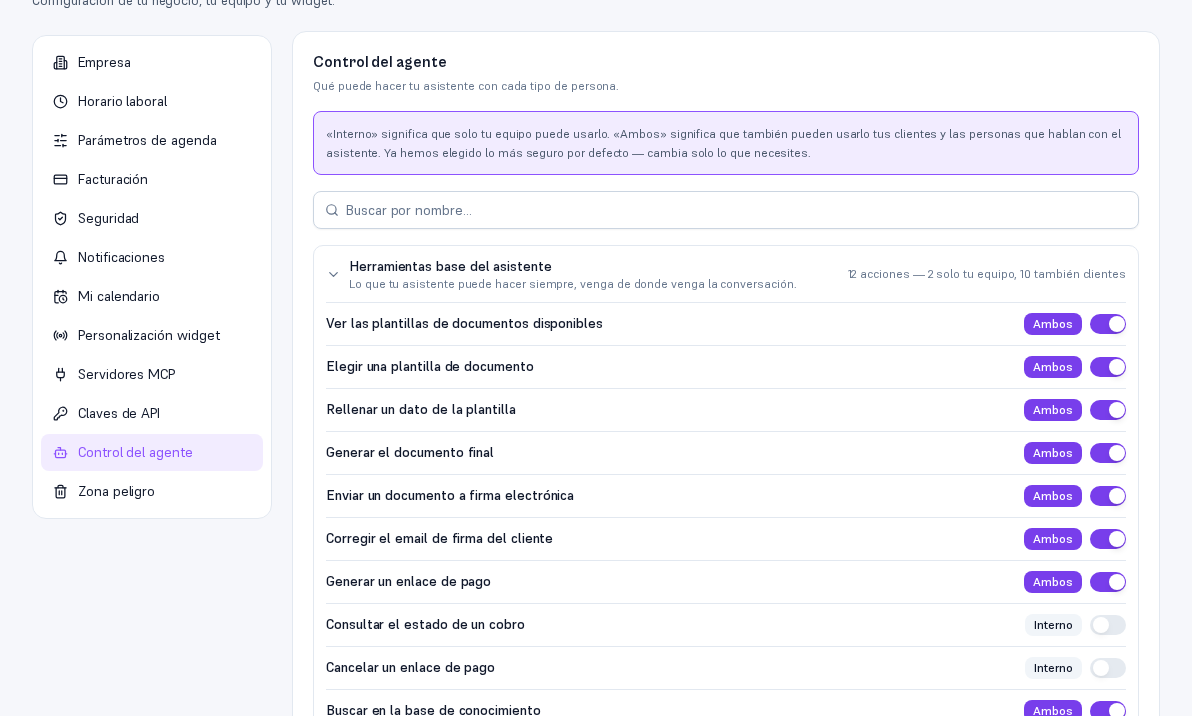
Go into Settings → Agent control. The screen lists everything your assistant can potentially do, grouped by source — base tools, each connected integration, your own MCP servers if you have any, document templates, and a summary of your knowledge base — and, next to each item, its audience:
- Internal: only your team can use it or see it.
- Both: your customers and the people talking to the assistant can use it too.
If the list grows (more than 8 items), a search-by-name box shows up. Each group can be collapsed or expanded by tapping its title.
2.1 Changing an item’s audience
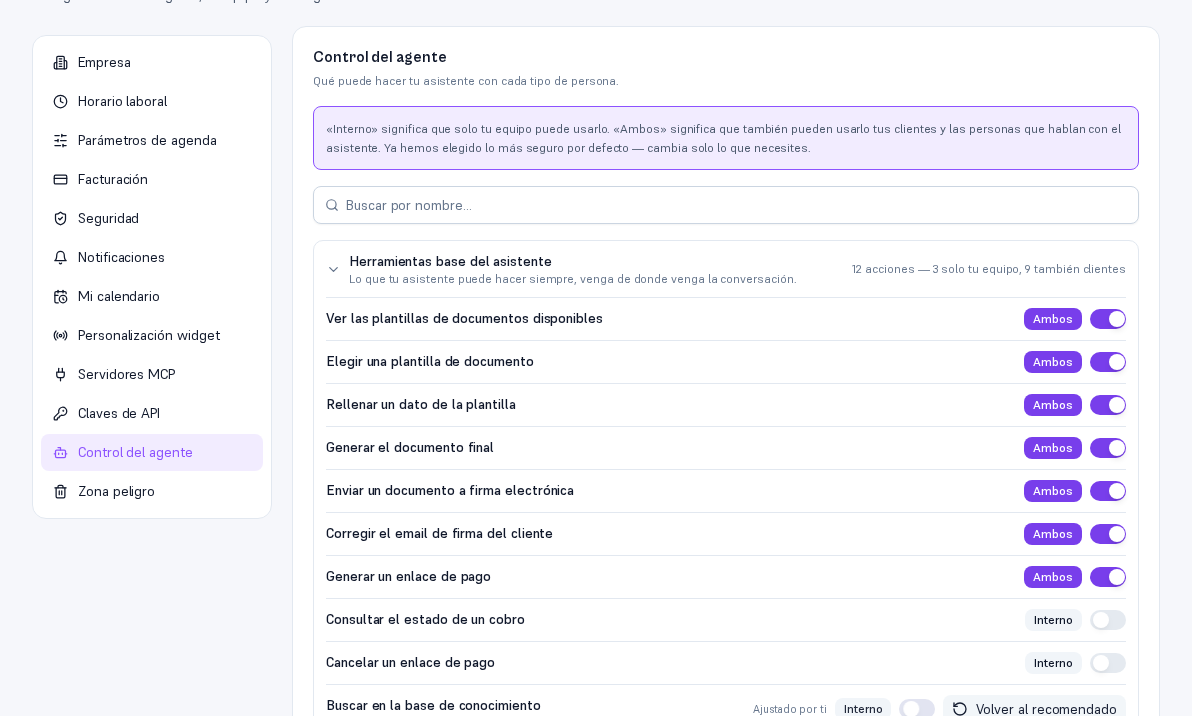
Section titled “2.1 Changing an item’s audience”Tap the toggle on the row you want to adjust:
- Restricting (from “Both” to “Internal”) is always available — there’s never a reason the Platform would stop you.
- Widening (from “Internal” to “Both”) is only available if the item itself allows it. Some sensitive items (for example, checking a payment’s status) can’t be offered to a customer yet — the toggle shows disabled, with the reason on hover or for a screen reader.
As soon as you change it, it’s saved — there’s no separate “Save” button, and the effect is immediate: your assistant stops (or starts) being able to use that item with customers on the very next message, with no delay.
Warning — An item you adjusted stays marked
When you change an item away from its default value, the row shows “Adjusted by you” and a “Revert to recommended” button — tapping it, that item goes back exactly to the value the Platform defaults to (this ALWAYS works, even if the item can’t be “Widened” directly with the toggle: it’s the only way back for those cases).
2.2 What isn’t adjusted from here
Section titled “2.2 What isn’t adjusted from here”Document templates show up on this screen in read-only mode — their audience is changed from their own record, in Documents (a direct link from the group itself). Your knowledge base’s summary isn’t edited here either: it counts how many documents are of each type based on how you tagged them when uploading (Manual 18).