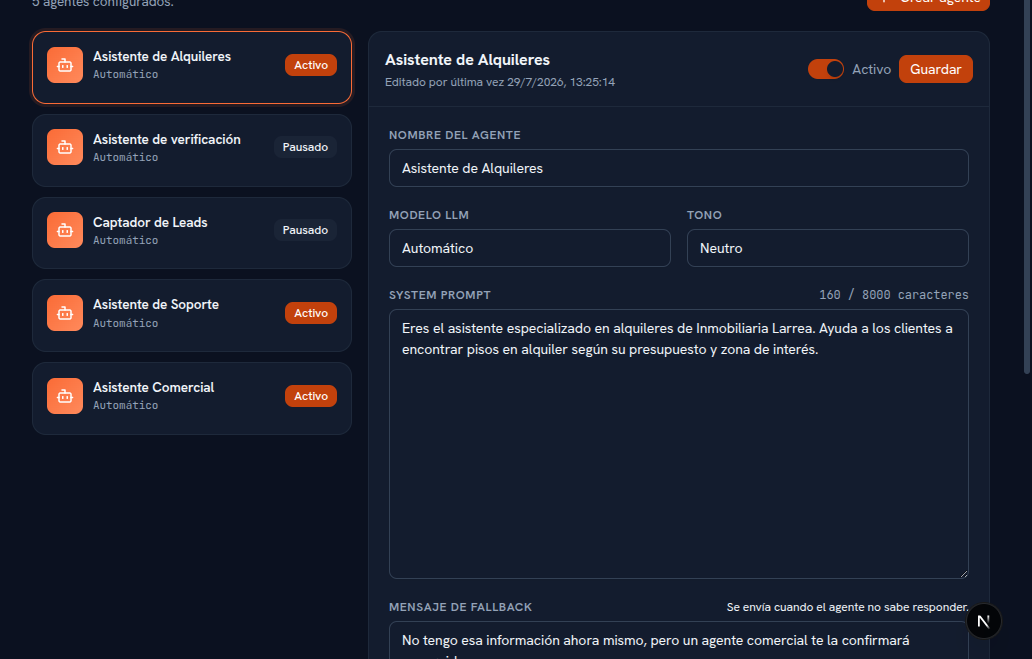
Create a new agent when you want part of your business to speak with a different tone, different instructions, or a different scope of knowledge than the rest of your agency — for example, an agent specialized in rentals, with its own system prompt and access only to the documents tagged for that part of the business (section 6).
Requirements: Admin role.
- Tap Create agent, at the top right of the screen.
- A window opens with the same fields as the editor. Type the agent’s name (required).
- Adjust the LLM model and the tone if you don’t want to leave them at their defaults (Automatic and Neutral).
- Type the system prompt (required) — the agent’s base instructions: who it is, its goal, and how it should behave. It has a character counter, up to a maximum of 8000.
- Type the fallback message (required) — what the agent replies when it doesn’t know how to answer something.
- Add escalation rules if you need them (optional; field-by-field detail in section 4).
- Adjust its resources if you don’t want the agent to start with no access to anything (optional; section 6).
- Tap Create agent to confirm, or Cancel to discard the window.
Result: the agent shows up immediately in the list on the left, Active by default and ready to be assigned to a channel (Manual 24 · Channels).
Note — Fixed transparency note under the system prompt
Both in this window and in the editor (section 3), right below the system prompt field, the platform always shows this notice: “Transparency (EU AI Act, Art. 50): the platform already tells your customers they’re talking to an AI — a notice on the first contact of every channel and on AI↔human switches — and the agent will confirm it’s an AI if asked. These guarantees can’t be turned off; make sure your own instructions don’t ask it to do the opposite.” It isn’t an editable field — it’s fixed information so you know what your own prompt shouldn’t contradict.