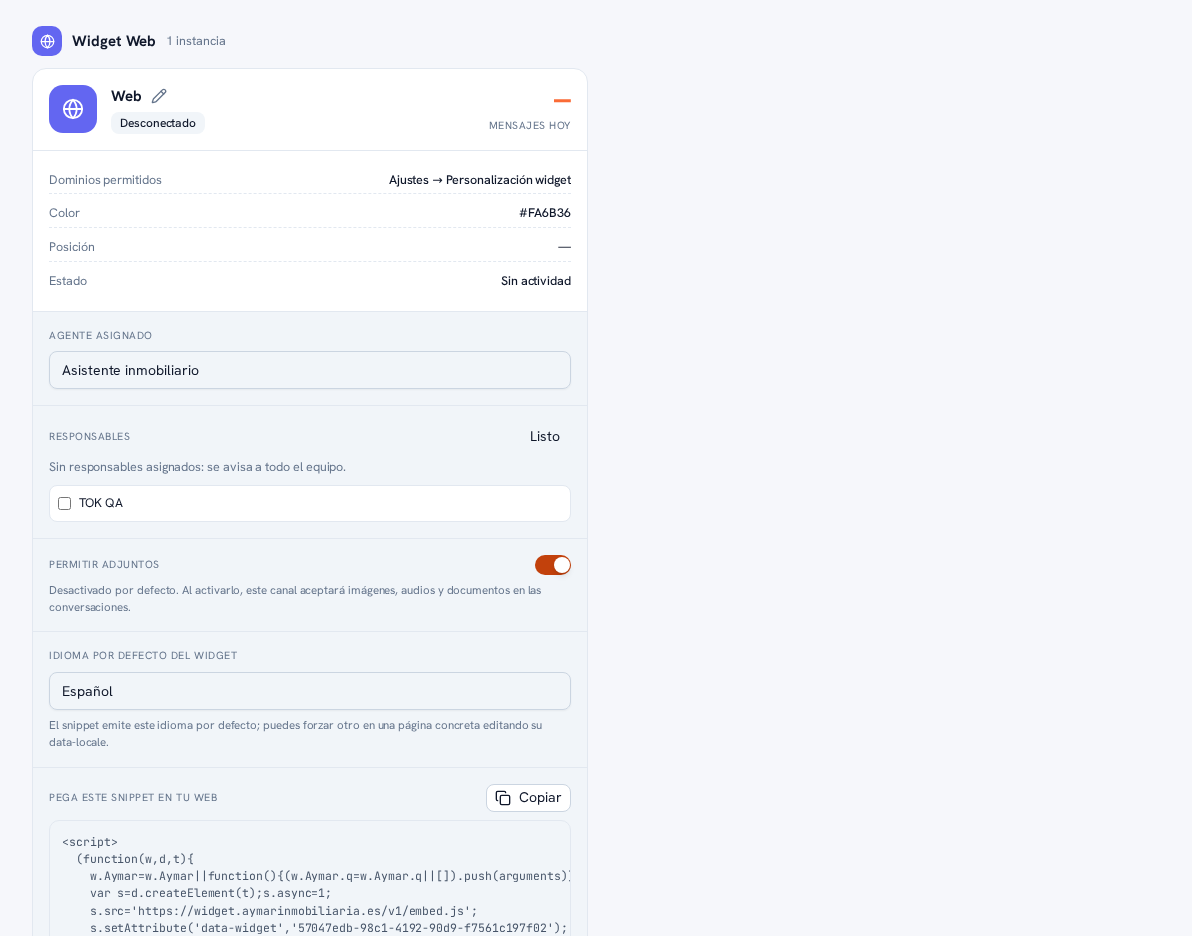
Every instance also has its own Owners section: who on the team gets notified when a conversation from THAT channel escalates (an escalation rule with the “Hand off to human” or “Notify admin” action — Manual 23 · AI agents).
Requirements: administrator role; the team already set up (Manual 25 · Team).
- On the channel’s card, tap Edit next to “Owners”.
- Check the boxes for the team members you want to receive that channel’s notice — you can choose several.
- Tap Done to confirm.
Result: the change saves instantly. Already-assigned owners show up as chips with their name on the card; remove them with each chip’s ×, with no need to open the editor again.
Warning — No owners assigned means the whole team is notified
If you don’t check anyone as a channel’s owner, that does NOT mean nobody finds out: that channel’s notices reach the agency’s whole active team, so an escalation is never missed for lack of configured owners. Assigning specific owners simply narrows the notice down to those people. On cards with nobody assigned, the section itself says so with the text “No owners assigned: the whole team is notified”.
The notice arrives through up to three channels, depending on each owner’s personal preferences (Manual 26 · Settings): always in the header’s bell; also by email if they haven’t turned it off; and also by WhatsApp if they’ve turned it on and your agency has a WhatsApp channel connected with an approved internal template.