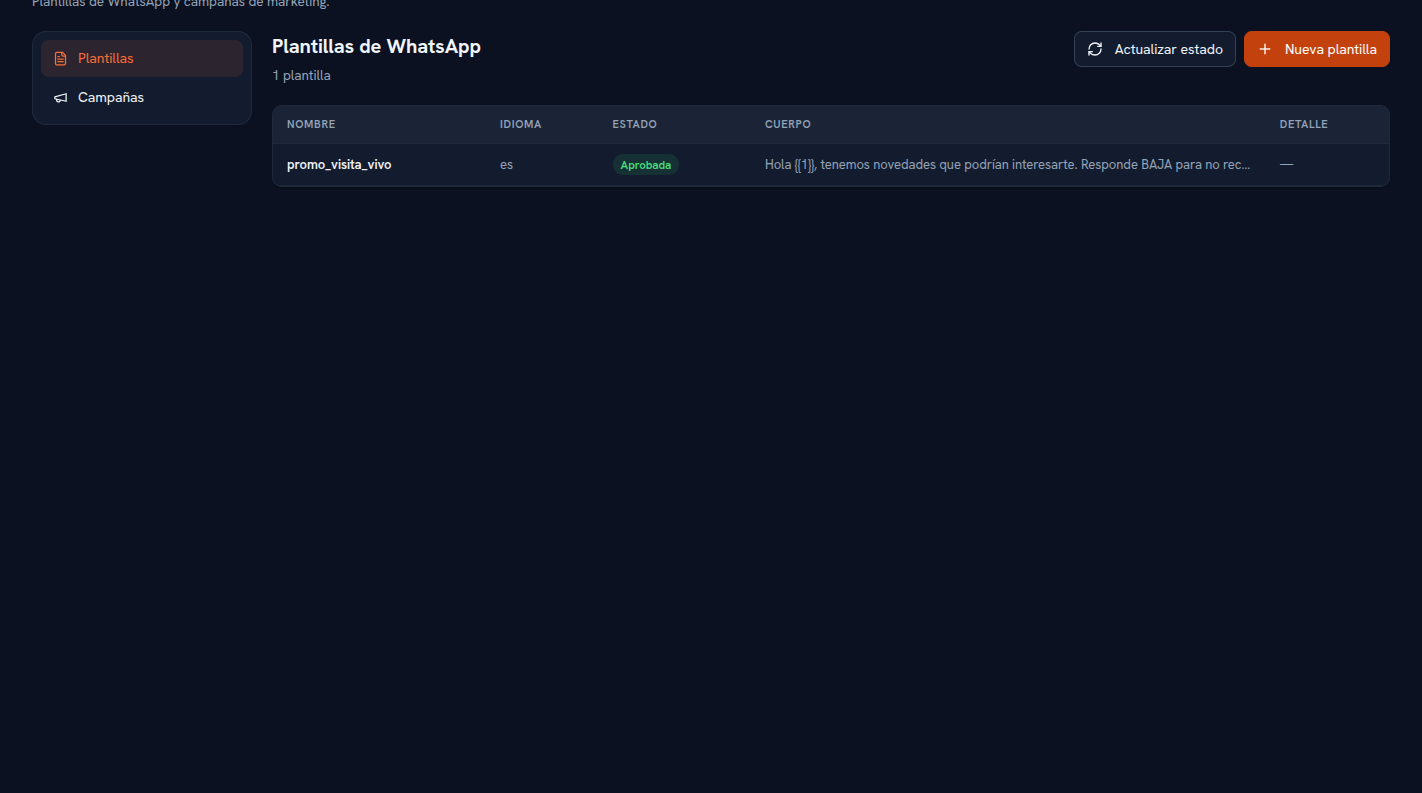
To write to a customer over WhatsApp outside an ongoing conversation (a campaign, a reminder), Meta requires using a previously approved template — a free-form message isn’t allowed. The Templates tab on Marketing is where you create them and track their approval.
Requirements: administrator or editor role; a WhatsApp channel connected (Manual 24 · Channels) to be able to use them.
- Tap “New template”.
- Type a name (it’s automatically normalized to the format Meta requires: lowercase and underscores) and the language.
- Type the message’s body; use
{{1}},{{2}}… wherever you want a contact’s data field filled in when sending — the window shows you the detected variables live. Header and footer are optional. - Tap “Create template”.
Result: the template is sent to Meta for review and shows up in the table with its name, language, status and body text.
Statuses a template goes through:
| Status | Meaning |
|---|---|
| Pending | Under review by Meta. |
| Approved | Ready to use in a campaign — the only eligible one. |
| Rejected | Meta has rejected it; if it gave a reason, it’s shown next to the status. |
| Paused | Meta has temporarily paused it for quality; it can still be used, it’s worth reviewing its performance. |
Tap “Refresh status” to check against Meta again whether a template is still Pending or if you expect it to have a rejection reason by now. Only Approved templates show up as an option when creating a campaign (section 11).