
Who this is for: any business that receives supplier invoices by email and wants to stop copying them into a spreadsheet by hand — this page’s example is an online store, to make clear that Nuntius is not only for real estate agencies: the mechanism is the same for any vertical.
What the end customer sees
Section titled “What the end customer sees”Your store’s widget answers catalog, shipping and returns questions with the usual AI notice — nothing different from any other channel. The invoice flow is purely internal: your suppliers only see that their email with the invoice attached reached your mailbox, as always; they never receive any message or know a flow is processing it.
Steps in the product
Section titled “Steps in the product”-
Install the widget on your store. Your account already ships with a web widget; copy its snippet from Channels → Web Widget and paste it into your online store. See Web widget.
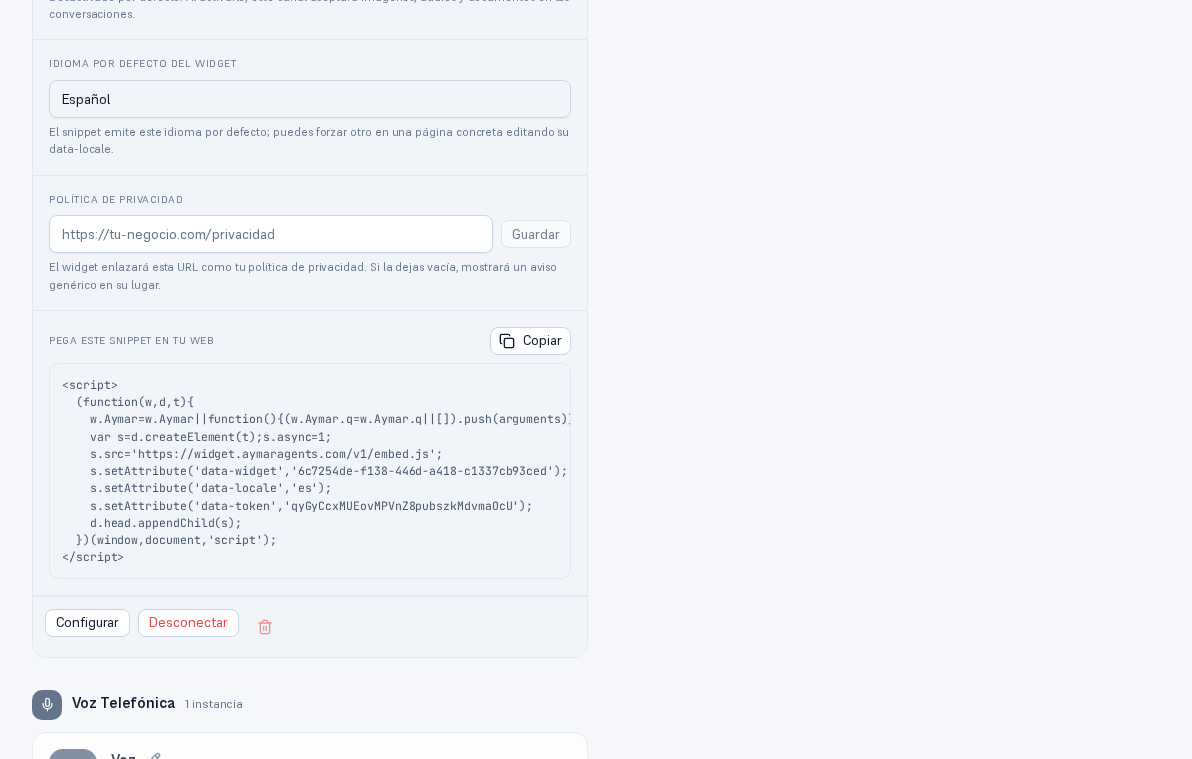
The same snippet works for any site — an online store, a landing page, or an agency's own website. -
Connect an email channel for your invoice mailbox. Under Channels, add an Email-type channel, give it a clear name (for example “Supplier invoices”) and fill in the connection form — inbound IMAP and outbound SMTP servers, username and password.
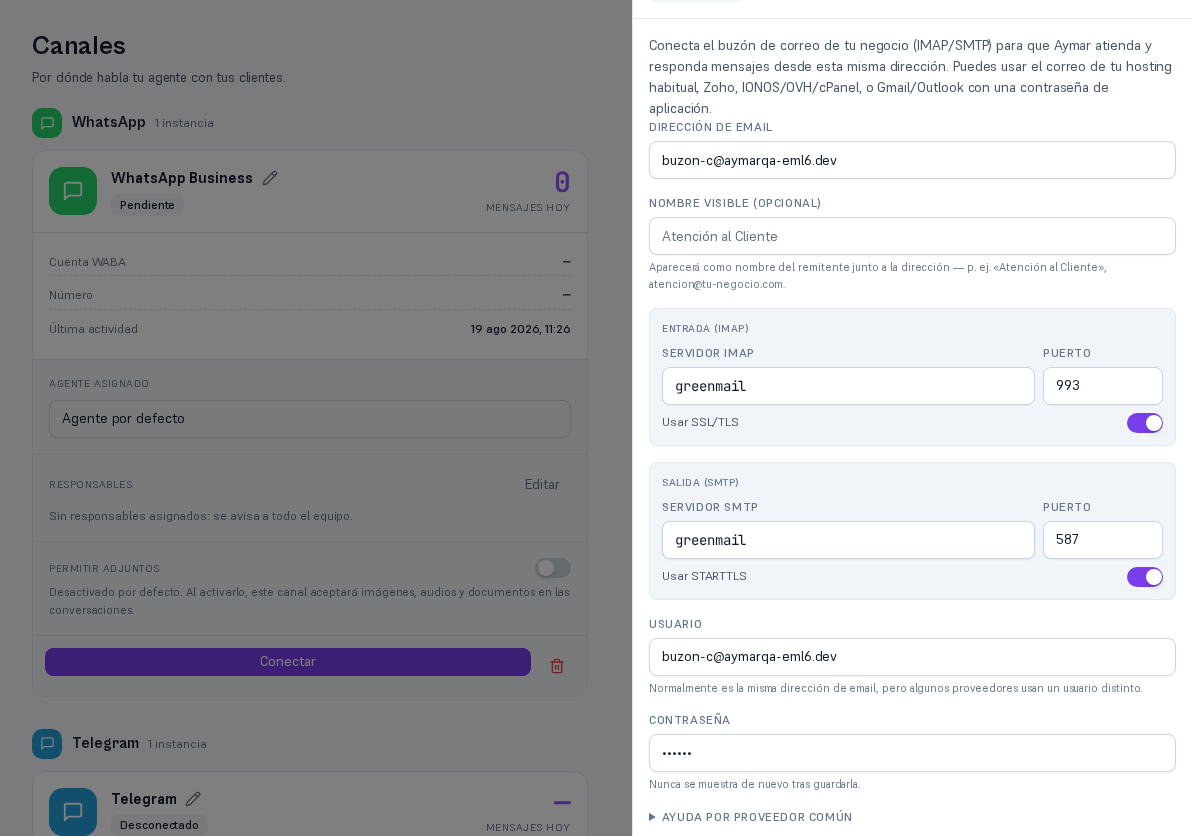
The same form works for a customer-support mailbox or a plain invoice-only one — only the name you give it changes. -
Create a named “Email (read)” connection, pointing at that same mailbox, with “Only for this flow” scope — so no other flow or the general assistant can read your invoices. And connect Google Sheets + Drive (or Excel + OneDrive) with at least one write-permission resource registered — that’s where the extracted data will be saved. See Named connections.
-
Create the flow from the “Invoices by email” template. Under Flows, tap “New flow” → “From template” and pick your variant — Google (Sheets + Drive) or Microsoft (Excel + OneDrive). Name it and choose the agent that runs it.
-
The template comes wired up end to end already: for every new email, it reads the message, downloads the attachment, and extracts sender, number, date and amount from the PDF with AI; it validates that data deterministically (no AI) — a valid amount, a real and non-future date; if everything checks out and confidence is high, it saves the row in your sheet and uploads the PDF to your folder automatically; if something doesn’t check out or confidence is low, the item is left awaiting your approval with the attachment in view before anything is saved — you never fill in the data by hand, you only review and confirm when the system asks.
-
Check the approval queue in Jobs whenever something needs your confirmation — see the honest notice below.
What to configure
Section titled “What to configure”- Web widget: at least one instance, with the snippet pasted into your store.
- Email channel: the mailbox where you receive supplier invoices.
- A named “Email (read)” connection, “Only for this flow” scope, pointing at that mailbox.
- Google Sheets + Drive or Excel + OneDrive, with at least one write-permission resource registered.
Limits and honesty
Section titled “Limits and honesty”- Recommendation — start with a test mailbox or a scoped folder. The template is tested end to end against a real mailbox: a real message produces a real item that gets read, extracted, validated, saved (or left awaiting your approval) and marked as processed. Even so, before letting it run unattended against your production mailbox, activate it first against a test mailbox or a scoped folder/label and review the first jobs in Jobs — the first real go-live against your production mailbox is done with support, not because anything is left unfinished.
- The supplier’s tax ID isn’t genuinely validated yet: the AI does extract it, but the current piece catalog doesn’t chain it into validation — the rest of the checks (amount, dates) are genuinely real.
- An email with no attachment is excluded from “new emails” — it never produces an empty row.
- An unreadable attachment (a PDF with no text, for example) fails extraction BEFORE calling the AI — the step waits for approval with the attachment in view.
- If the sheet or folder become unreachable, the task moves to “Failed” with the exact reason in its history — never a silent retry you never hear about.
- Run twice on the same day, nothing gets duplicated: every email is identified by its own message ID and, once marked “processed”, it’s never read again.
See also
Section titled “See also”- Web widget — the full snippet and its customization.
- Email channel — connecting and testing a mailbox.
- Named connections — scopes and allowed actions.
- Jobs and flows — the Jobs screen and its statuses.