
Who it’s for: any business that wants to solve customers’ repeat questions without a person having to be available all day, keeping your team’s time for what genuinely needs a person.
What the end customer sees
Section titled “What the end customer sees”The customer writes on WhatsApp, Telegram or your website widget and gets answers based on the documentation you uploaded — never made-up information. If they ask to talk to a person, or an escalation rule your admin configured fires (certain keywords, or too many turns without resolving the question), the AI says so plainly (“I’ll let a member of the team know…”) and stops answering from that message on. They are never left unanswered or unexplained, on any channel, day or night: the AI answers 24/7, and if something escalates outside your working hours, it waits until someone on your team picks it up.
When a person takes control, the customer gets a notice (“you’re now talking to {your name}, a member of
our team”) — they never change who they’re talking to without knowing it. And if that person decides to
hand the conversation back to the AI without closing it, the customer gets the hand-back notice too.
Steps in the product
Section titled “Steps in the product”-
Upload documents to your knowledge base. Drag your files (PDF, DOCX, MD, TXT, CSV or HTML) into Knowledge base → Documents; optionally tag them to control which agent can use them — untagged documents get “General” automatically. See Knowledge and documents.
-
Test what the AI would retrieve, before a real customer sees it. In the Playground tab, write a sample question and pick an agent (or “Global”) to see exactly which document fragments it would use to answer. If information is missing, go back and add documents.
-
Adjust your agent’s escalation rules. In AI agents, configure which keywords or how many unresolved turns trigger a hand-off to a person. See AI agents.
-
A customer writes and the AI answers from your documents, or escalates if the customer asks or a rule fires — the conversation shows up in Queue (or “All”) waiting for someone on your team.
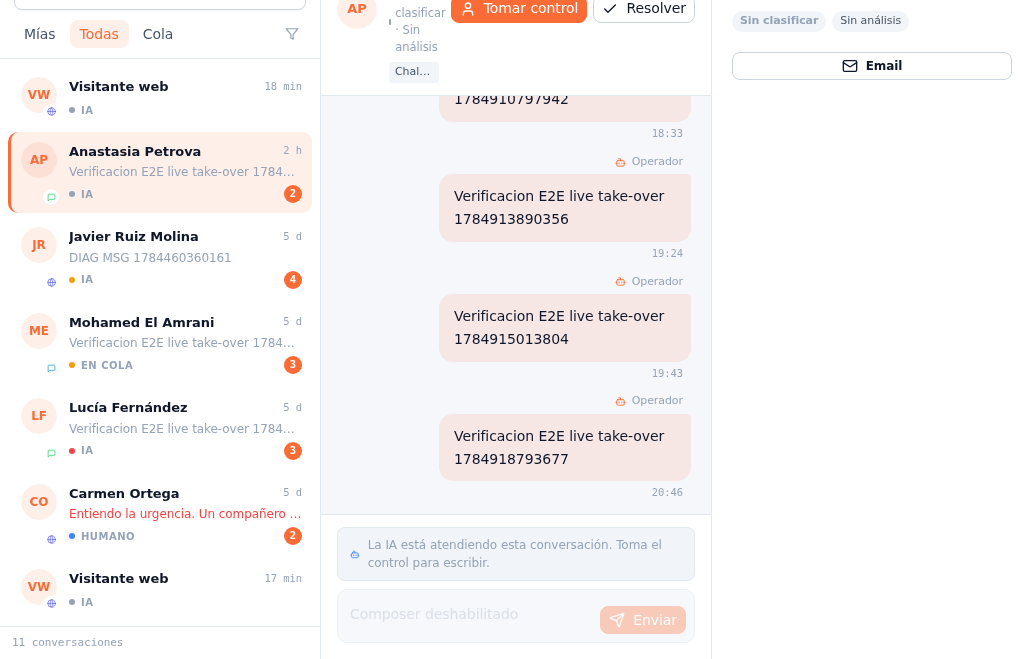
While the AI answers, the composer stays disabled — the Take over button is all you need once a case escalates. -
Open the conversation and press “Take over”. The composer becomes enabled, the conversation switches to HUMAN mode, and the AI stops stepping in until you resolve it or hand it back yourself. See Conversations.
-
Reply to the customer. Read the history first so you don’t repeat questions the AI already asked.
-
Press “Hand back to AI” or “Resolve”, depending on the case: handing back keeps the conversation open but the AI answers again; resolving closes it entirely.
What to configure
Section titled “What to configure”- Knowledge base: documents uploaded, tagged if you have several agents with different scopes.
- Escalation rules: keywords or the unresolved-turns threshold, per agent.
- Channel owners: who gets notified (bell, email, and WhatsApp if you turn it on) when a conversation on that instance escalates.
Limits and honesty
Section titled “Limits and honesty”- The AI never invents facts about your business: if it’s not in your knowledge base, it doesn’t know it.
- An escalation always lands QUEUED, visible to anyone on your team — it isn’t auto-assigned to one specific person unless your instance has channel owners configured.
- The Playground is a test view: it doesn’t generate a chat reply, it just shows you which fragments the AI would retrieve.
See also
Section titled “See also”- Knowledge and documents — upload, tag and test in the Playground.
- Conversations — take over, hand back to AI and resolve.
- AI agents — escalation rules, field by field.
- Lead capture via WhatsApp and web — the step before this one, while the conversation is still a fresh opportunity.