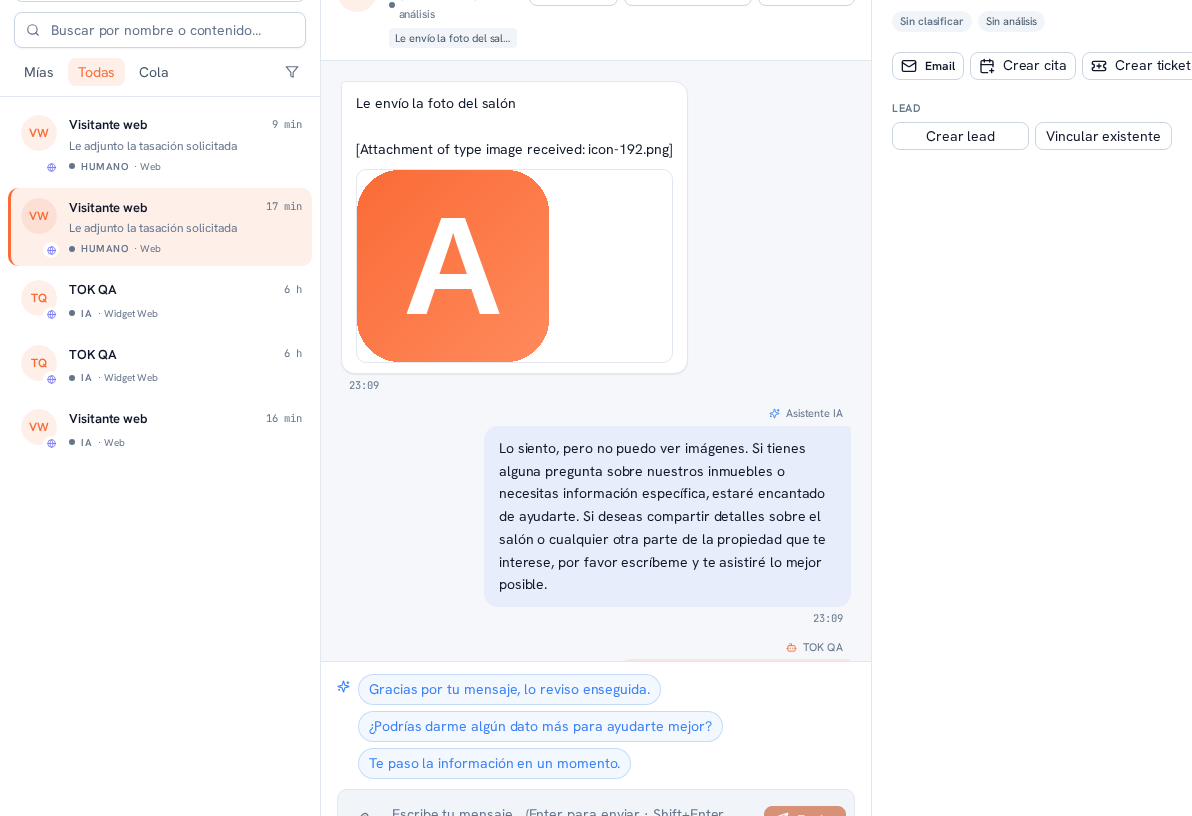
Sometimes you take control and, without needing to close the case, you’d rather have the AI continue the conversation. That’s what the “Hand back to AI” button is for, next to “Assign” and “Resolve”, visible on any conversation you’re handling in HUMAN mode.
Requirements: having control of the conversation (HUMAN mode).
- Open the conversation you’re handling.
- Tap Hand back to AI.
- The conversation returns to AI mode: the composer becomes disabled for you again and the AI resumes replying to the customer from the next message on.
Result: unlike Resolve, the conversation isn’t marked as closed — only who replies changes.
Note — The customer also finds out it’s back with the AI
When you hand the conversation back, the customer likewise gets an automatic notice (“You’re back to talking with our AI-powered virtual assistant”) before the AI resumes replying — the same transparency guarantee as when control is taken (previous section).
Note — Assign
The same button group includes “Assign”: it moves the conversation to another colleague on your team without handing it back to the AI or resolving it — it stays in HUMAN mode, but someone else handles it.