
It’s the first screen you see when you log in. It greets you by name and gives you a snapshot of your agency’s day at a glance. It’s a read-only screen for any role: nothing is edited here, it just helps you get your bearings before you start working.
5.1 Header and range selector
Section titled “5.1 Header and range selector”At the top left you see today’s date and the greeting (“Hi,
5.2 “Set up your account”: the setup checklist
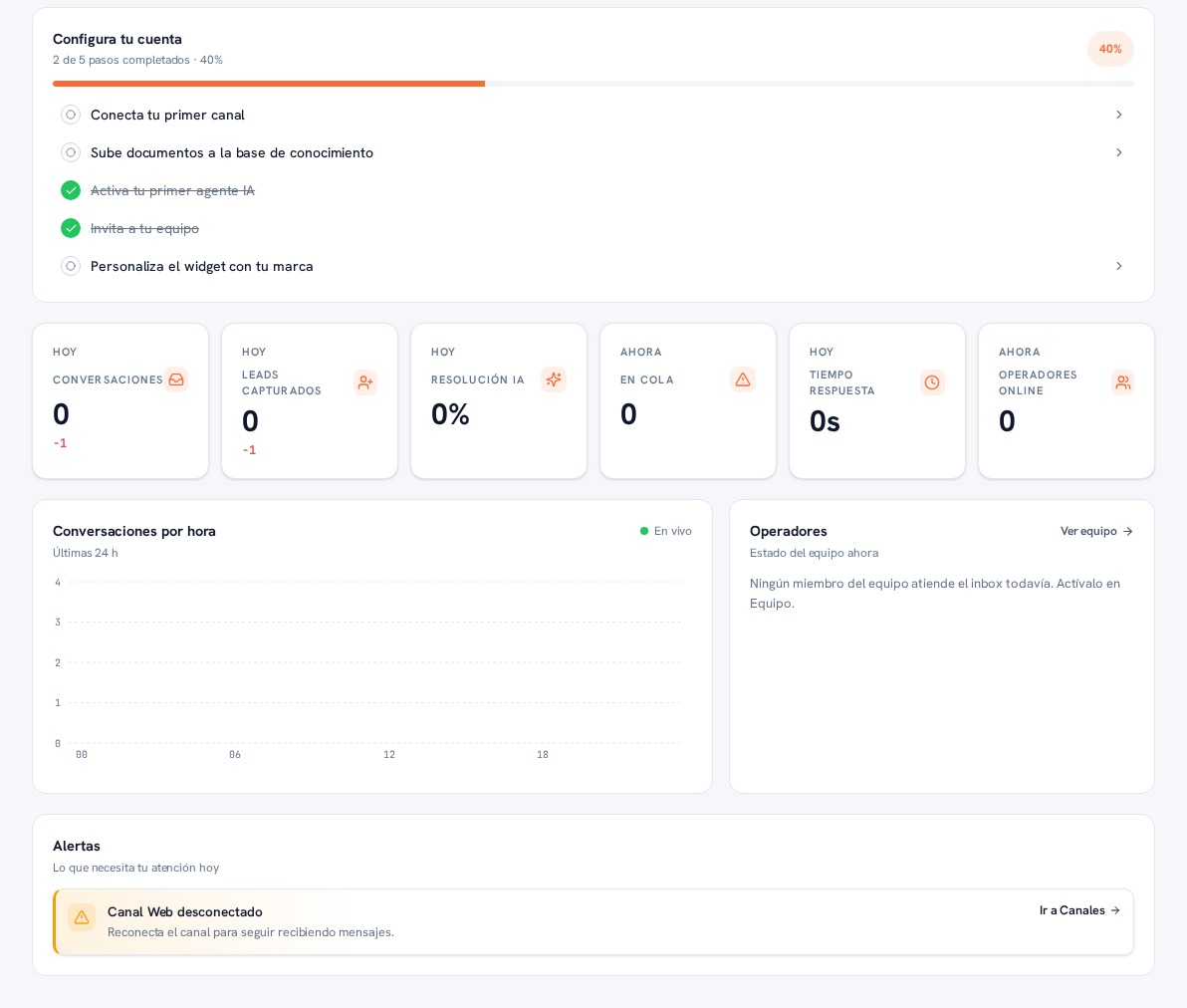
Section titled “5.2 “Set up your account”: the setup checklist”It’s a card with your agency’s setup progress (for example, “2 of 5 steps completed · 40%”, with a progress bar and the percentage in a label on the right). The steps are always these five, in this order:
- Connect your first channel — manual 24 · Channels.
- Upload documents to the knowledge base — manual 18 · Knowledge base and documents.
- Activate your first AI agent — manual 23 · AI agents.
- Invite your team — manual 25 · Team and roles.
- Customize the widget with your brand — manual 06 · Web widget.
Completed steps show crossed out with a green mark; pending ones show a hollow circle and a › arrow on the right — tapping any pending step takes you straight to the corresponding screen to complete it.
5.3 Today’s indicators
Section titled “5.3 Today’s indicators”Six cards, each with its period label (“Today” or “Now”), an icon and a large value:
| Indicator | What it measures |
|---|---|
| Conversations (Today) | How many conversations there have been today across any channel. |
| Leads captured (Today) | How many new leads the AI has captured (or that were created by hand) today. |
| AI resolution (Today) | Percentage of today’s conversations resolved by the AI without a person stepping in. |
| Queued (Now) | Conversations waiting for a human right now — highlighted with a warning icon when there are any. |
| Response time (Today) | Today’s average response time, in seconds. |
| Operators online (Now) | How many of your team members are connected right now, out of the whole team (for example, “0/5”). |
5.4 Conversations by hour
Section titled “5.4 Conversations by hour”A chart of the last 24 hours, with a “Live” signal (green dot) showing it updates on its own. The horizontal axis shows the hours of the day (00, 06, 12, 18) and the vertical one, the number of conversations in each slot.
5.5 Operators
Section titled “5.5 Operators”Lists the team’s status right now: for each connected person, their avatar, name and username, a colored dot with their presence (“Online”) and how many simultaneous chats they can handle at most (“max. 5 chats”). The “View team →” link, at the top right of the panel, takes you to full team management (manual 25 · Team and roles).
5.6 Alerts
Section titled “5.6 Alerts”What needs your attention today, with an icon, a title and a context sentence for each notice, and a direct link to the screen where you can resolve it. For example:
- “Connect your WhatsApp Business account to get started” / “Connect your Telegram bot with the BotFather token” — disconnected-channel notices, with the “Go to Channels →” link (manual 24 · Channels).
- “1 conversation is waiting for a human” — the AI escalated that conversation to an operator, with the “Open inbox →” link (manual 16 · Conversations).