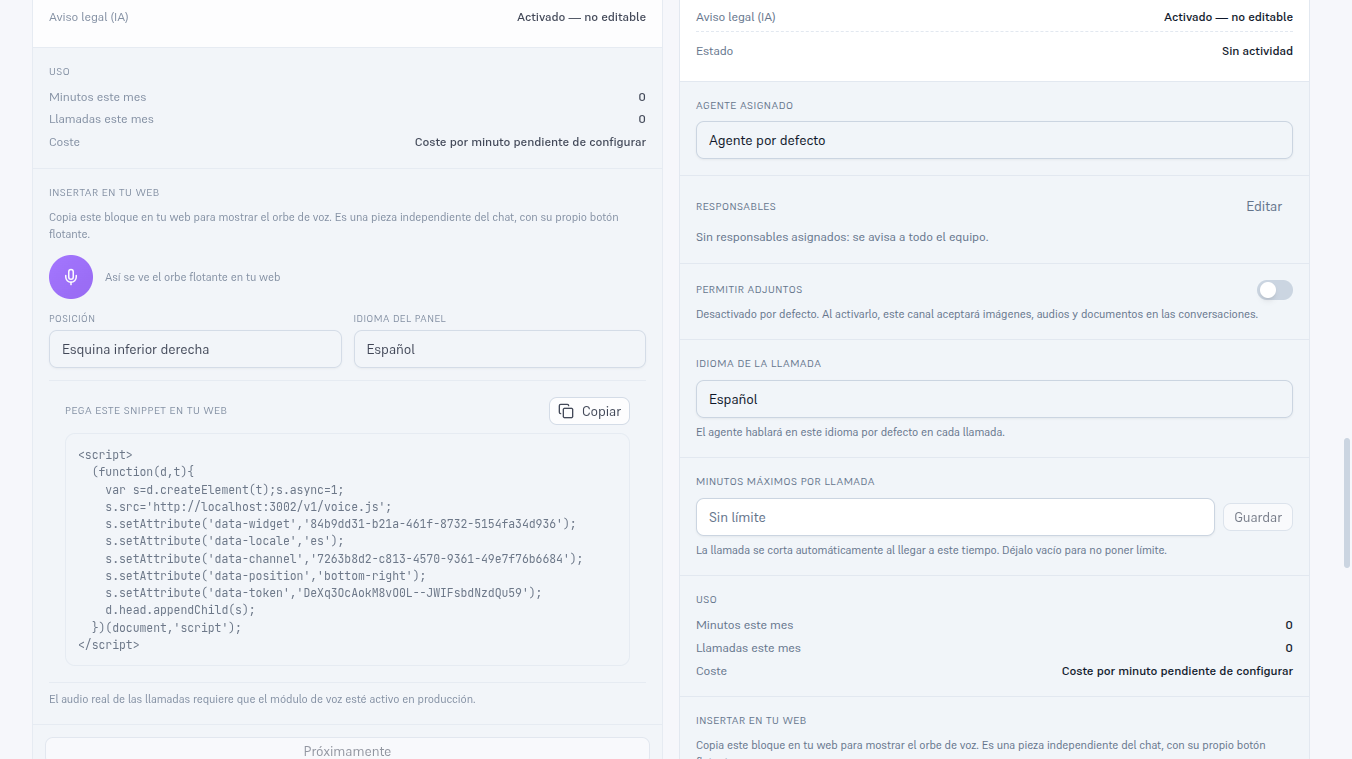
The Voice channel activates a voice assistant for your business: a floating orb you can embed on your site (section 8.2) and, inside the web chat itself, a “Call” button so a visitor can talk instead of typing (Manual 06 · Web widget). The two surfaces share the same channel, the same agent and the same minutes usage.
Notice — The dropdown says “Phone Voice”, but today it’s voice for your site
When you create the channel (section 3), the type is called “Phone Voice” — a name meant for when the channel can also receive and place calls to a real phone number. That part (dialing or receiving on a number) is still marked Coming soon and isn’t available yet. What DOES work as soon as you create the channel is voice inside your own site: the orb (section 8.2) and the chat’s “Call” button.
Requirements: administrator role.
8.1. Configure the channel
Section titled “8.1. Configure the channel”Once created (section 3), its card shows:
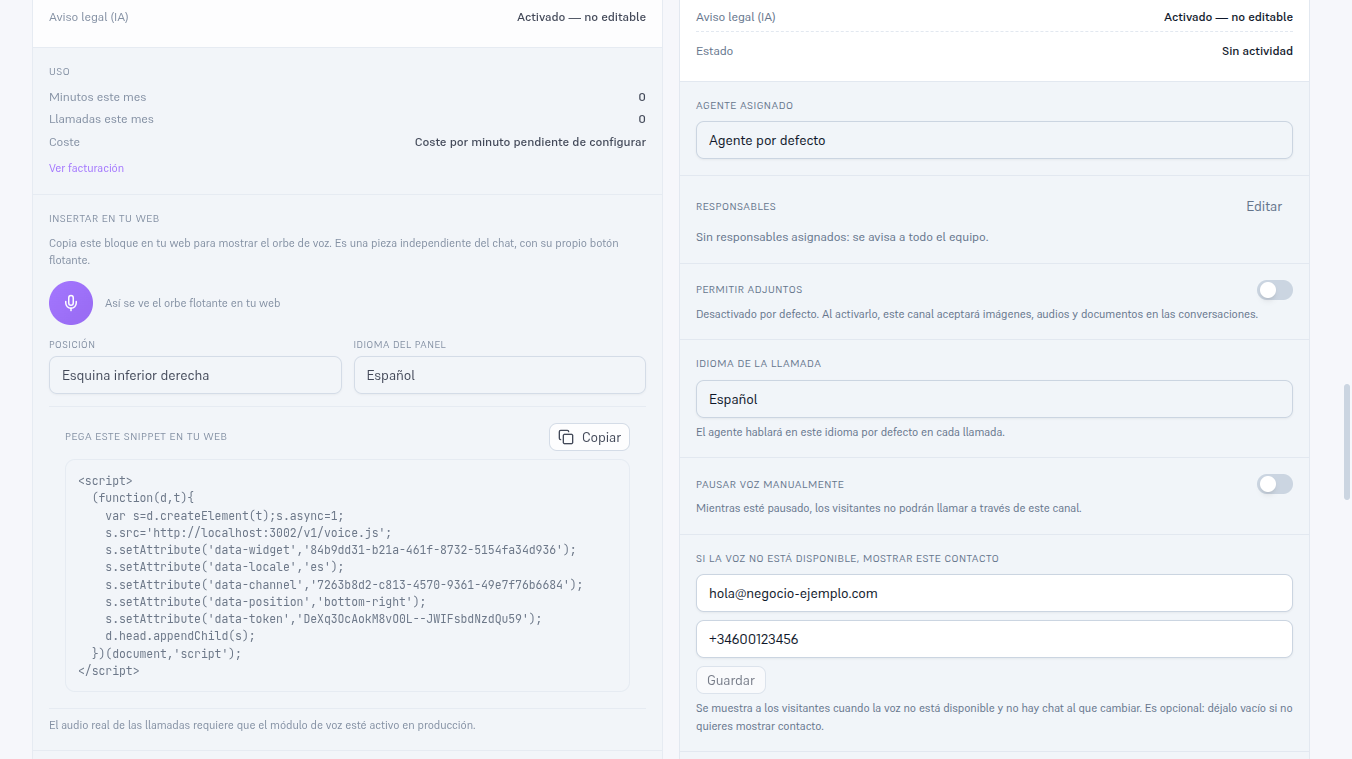
- Legal notice (AI): always “Enabled — not editable”. This is the AI Act notice (Art. 50) — your agent says it out loud at the start of every call, and the visitor’s panel shows it in writing permanently (Manual 75 · The voice widget on your site). It isn’t a checkbox you can turn off.
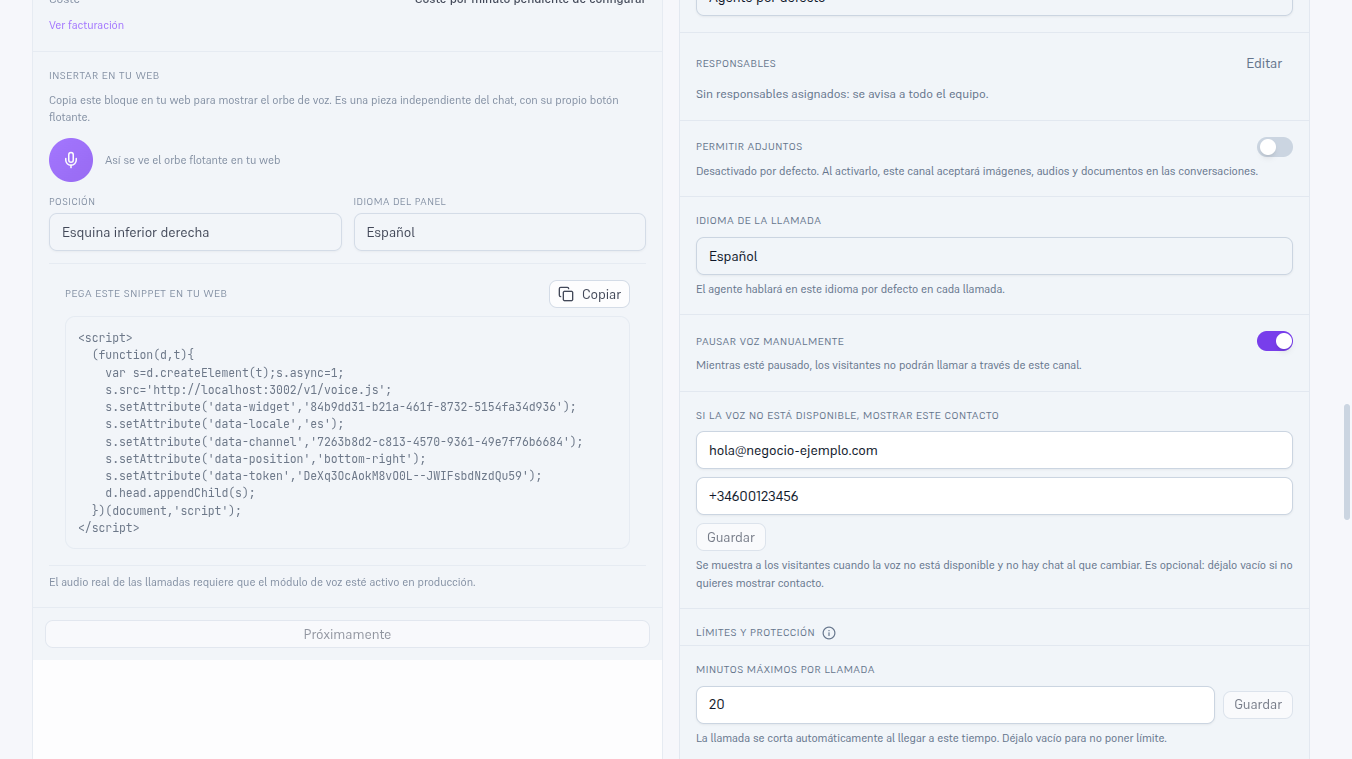
- Call language: the language your agent speaks by default on every call (Spanish, English, Italian).
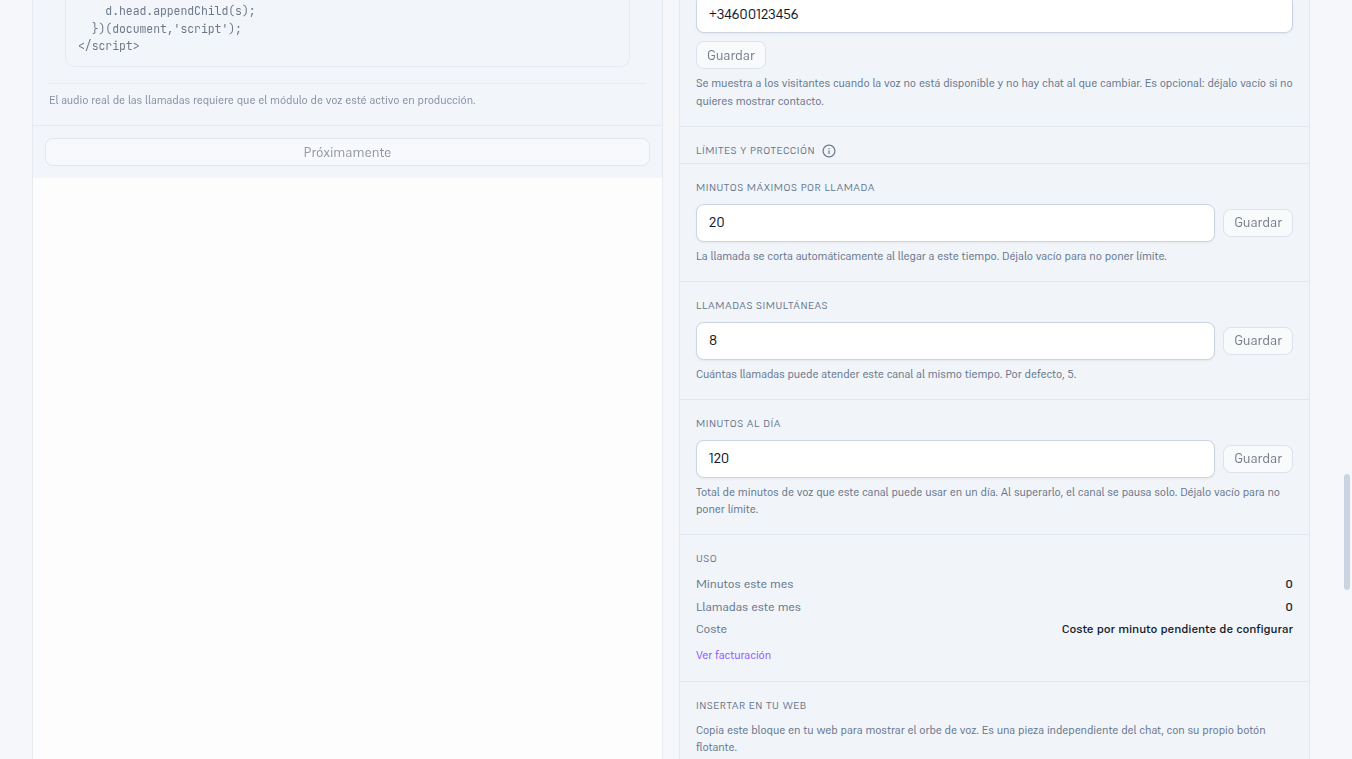
- Maximum minutes per call: type a number and press Save so the call automatically cuts off once it reaches that time — your agent says goodbye before hanging up, never a silent cut. Leave it empty for no limit.
- Simultaneous calls: how many calls this channel can handle AT THE SAME TIME. 5 by default — type a number and press Save to change it, or leave it empty to go back to the default value. Section 8.4 explains what happens once it’s reached.
- Minutes per day: total voice minutes this channel can use IN ONE DAY. Once exceeded, the channel pauses itself (section 8.4) — leave it empty for no limit.
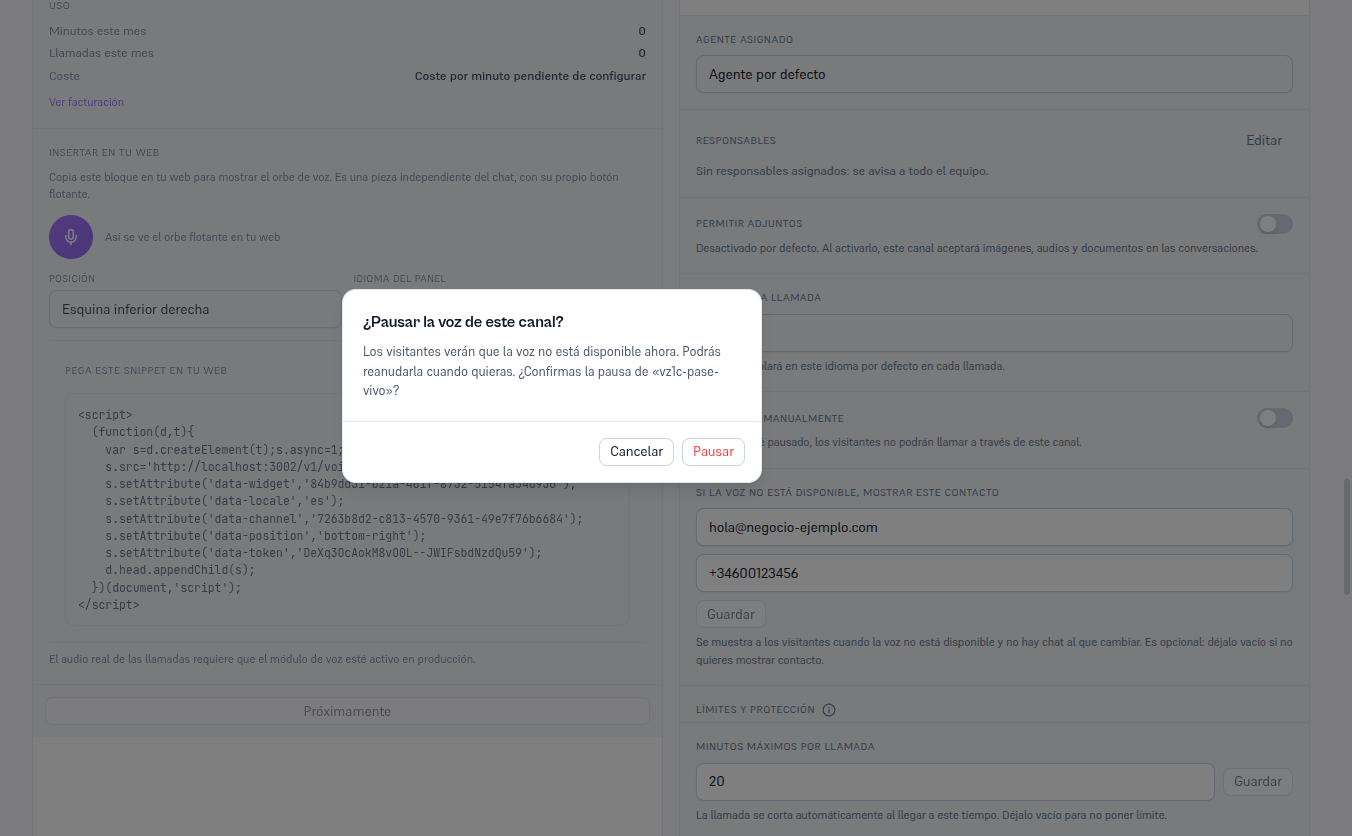
- “Pause voice manually”: a switch to turn off this channel’s voice instantly, without erasing your configuration. Section 8.4 explains its confirmation and what your visitors see while it’s paused.
- “If voice isn’t available, show this contact”: an optional email and/or phone number — your site’s voice panel (Manual 75) shows them to a visitor who can’t talk to you by voice, instead of the generic “Contact us another way” notice. Two independent fields: fill in one, both, or neither. The email must be a valid email address and the phone number must be in international format (for example, +34600000000).
- Usage: minutes and calls consumed this month, and your plan’s per-minute cost (or a notice that it isn’t configured yet) — with a direct link to Billing.
8.2. “Embed on your site”: the voice orb
Section titled “8.2. “Embed on your site”: the voice orb”It’s a piece SEPARATE from the web chat: two snippets, two widgets, each with its own floating button on your site — they never merge into one. Manual 75 “The voice widget on your site” explains the whole orb from your visitor’s point of view (states, captions, how a call ends); this section only covers the procedure to publish it.
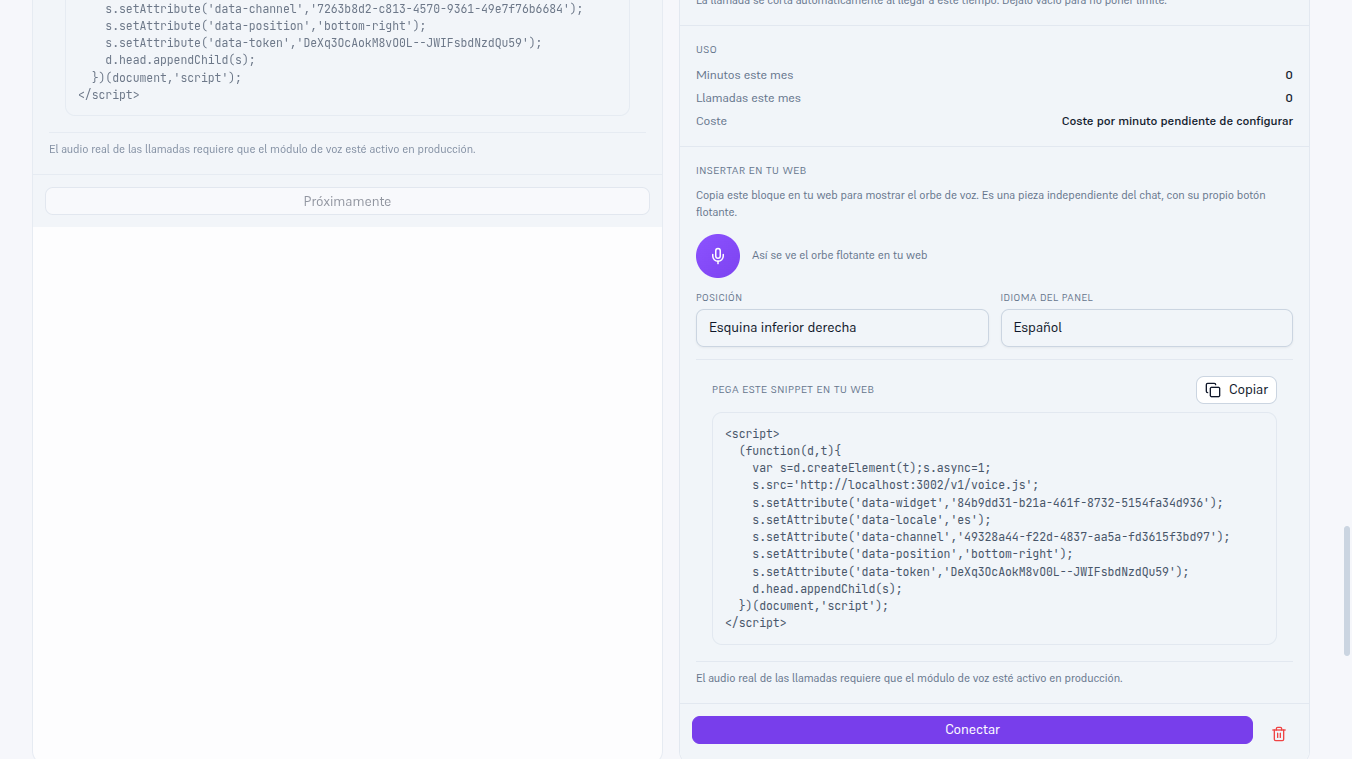
- On the Voice channel’s card, scroll down to “Embed on your site”.
- Choose the orb’s position on your site (bottom-right or bottom-left corner) and the panel language — the orb preview and the snippet update instantly.
- Press Copy and paste the block into your site’s code, the same way as the chat snippet (Manual 06).
Notice — Real audio requires the voice module to be active
The snippet works on any channel you’ve already created, but a visitor actually talking to your agent (voice heard and answered) depends on your provider having the voice module active in production — the notice under the snippet reminds you of this. Without it, the orb opens and shows its states normally, but the call never connects.
8.3. Pause the channel
Section titled “8.3. Pause the channel”Disconnect (section 3.3) removes the orb from your site instantly — the snippet you already pasted stops showing it to your visitors — and keeps your configuration (language, minutes, owners) for when you reconnect it. While the channel is out of plan or out of minutes, the orb stays visible on your site but disabled, with a neutral message (“Voice not available right now”) — never an internal reason or plan data (Manual 62 · Plan capabilities and limits). To pause voice YOURSELF without disconnecting the channel, use the “Pause voice manually” switch in section 8.4.
8.4. Limits, pause and usage
Section titled “8.4. Limits, pause and usage”The card’s “Limits and protection” section (with its own ⓘ help icon) brings together this instance’s three caps: maximum minutes per call, simultaneous calls and minutes per day (all three from section 8.1). If any of them is exceeded, the channel pauses itself and we notify you by email and with a notification in the platform — you can resume it whenever you want.
Note — No business hours or number blocking yet
This round covers the minutes/sessions caps and manual and automatic pause. Voice-specific business hours and blocking calling numbers are part of real telephony (dialing/receiving on a number), which is still marked Coming soon (section 8, notice above) — they don’t exist yet, not even as a disabled option.
Manual pause
Section titled “Manual pause”The “Pause voice manually” switch (section 8.1) cuts off this channel’s voice instantly, without touching your configuration (language, limits, owners). Because it’s an action with a real consequence, turning it on asks for explicit confirmation before it applies — it never pauses from one accidental click. Turning it off (resuming it yourself) has no negative consequence to confirm and applies instantly.
Automatic pause (daily-minutes circuit breaker)
Section titled “Automatic pause (daily-minutes circuit breaker)”If the channel REALLY reaches its minutes per day cap, it pauses itself — same as the manual switch, but without you turning it on — and the card shows an honest banner explaining it paused automatically for exceeding the daily limit, with a “Resume” button. Pressing it clears the automatic pause and the state is always confirmed against the server — it’s never assumed resumed before the platform confirms it.
Note — The circuit breaker can’t be switched on by hand, only resumed
It’s the only state on this screen that you CANNOT set yourself — only the server activates it (on REALLY exceeding the daily-minutes limit) and only you can clear it, by pressing “Resume”. You’ll never see the banner unless the channel has really exceeded its daily cap.
Usage this month
Section titled “Usage this month”The “Usage” section (section 8.1) is the same minutes/calls/cost panel as always, now with a direct link to Billing to review your monthly usage without leaving Channels.