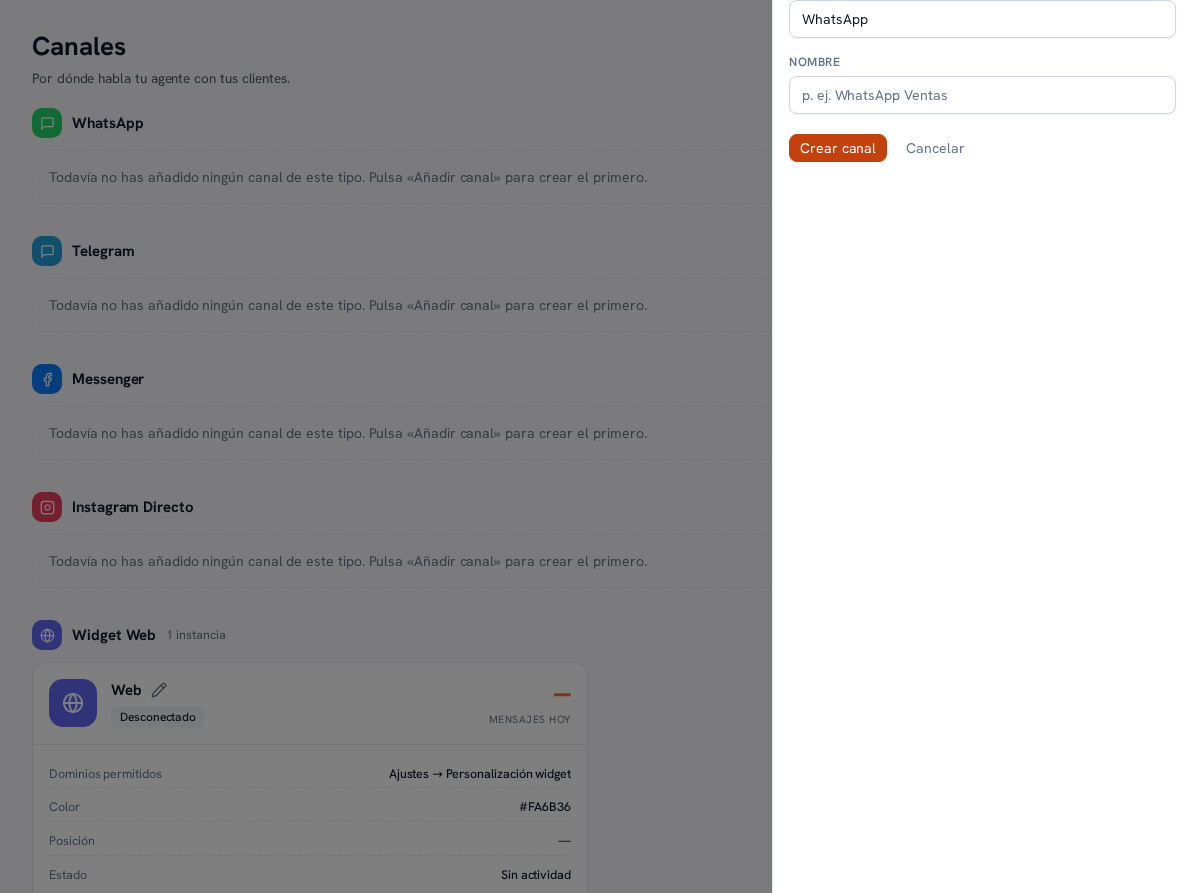
The Add channel button, in the screen’s header, is your starting point for setting up as many WhatsApp numbers, Telegram bots or widgets as your agency needs.
Requirements: administrator role.
- Tap Add channel.
- Choose the channel type: WhatsApp, Telegram, Web Widget or Voice (section 8; in the dropdown it shows up as “Phone Voice” — today it activates voice for your site, see the notice in that section; Messenger and Instagram follow the same pattern, section 7).
- Type a name that sets it apart from the rest — for example “WhatsApp Sales” — it’s required.
- Tap Create channel.
Result: the instance shows up immediately as a new card. For WhatsApp and Telegram, its connection wizard opens directly (sections 4 and 5); for Web Widget no further step is needed — its card already shows the ready-to-use snippet, with its own connection identifier generated the moment it’s created (section 6).
3.1. Renaming a channel
Section titled “3.1. Renaming a channel”Tap the pencil icon next to the channel’s name on its card, type the new name and confirm with Save (or Cancel to discard the change).
3.2. Deleting a channel
Section titled “3.2. Deleting a channel”Use the card’s trash icon and confirm in the warning — the action can’t be undone.
Warning — A connected channel can’t be deleted
If the channel is still Connected, the delete button shows disabled: disconnect it first (section 3.3). Deleting a WhatsApp or a Telegram frees up its number or its bot to be connected again later, on a new channel.
3.3. Disconnecting (or pausing) a channel
Section titled “3.3. Disconnecting (or pausing) a channel”Connecting and disconnecting is how you enable and disable a channel: while it’s “Disconnected” it doesn’t receive new conversations, though its card and its configuration (agent, owners, attachments) stay intact for when you connect it again. Each channel type has its own disconnect button on the card: Disconnect on WhatsApp, Telegram and Voice; on Web Widget, remove the snippet from your site to stop receiving new conversations — the card itself keeps existing as long as you don’t delete it. On Voice, pausing the channel is also how you remove the orb from your site without deleting its configuration: as soon as you disconnect, the snippet you already pasted stops showing the orb to your visitors (section 8).