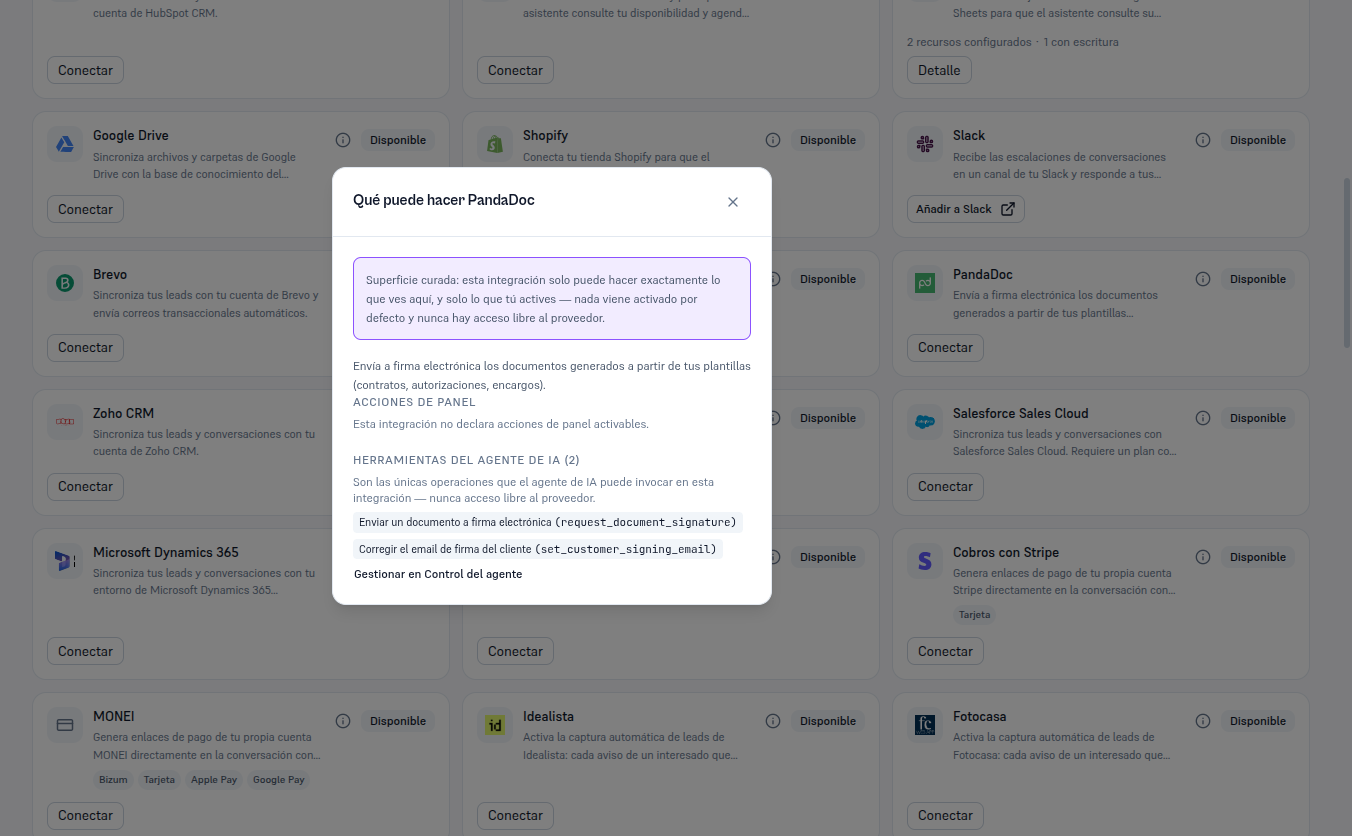
PandaDoc is the only integration in this catalog with no panel actions — there’s no event on your Platform that syncs data to PandaDoc in the background. Its whole scope goes through two agent tools and an automatic status notice.
From the PandaDoc card, already Connected, click Detail to open its record. You’ll see four tabs — Resources (PandaDoc has no additional resources to configure here, so this tab stays empty), Agent (no panel-action list, just the tools below), Connections (the “principal” connection, the only one for this integration) and Status (section 6).
The two AI agent tools the agent can invoke (section 7):
| Tool | What it does |
|---|---|
Send a document to electronic signature (request_document_signature) | Sends to sign a document ALREADY generated from an approved DocGen template — never free-form content made up by the agent. |
Correct the customer’s signing email (set_customer_signing_email) | Updates the email the signature request goes to, if the customer confirms in the conversation that the one on record isn’t the right one. |
A “Manage in Agent control” link leads to the screen where it’s decided, per tool, whether it’s Internal (only your team uses it from chat) or Both (your end customers also use it) — Manual 52 · Agent control and permissions covers that screen in detail.
The “What can PandaDoc do” button (the i icon) on the card itself shows this same summary — including the explicit notice that this integration declares no panel actions — without needing to connect yet.
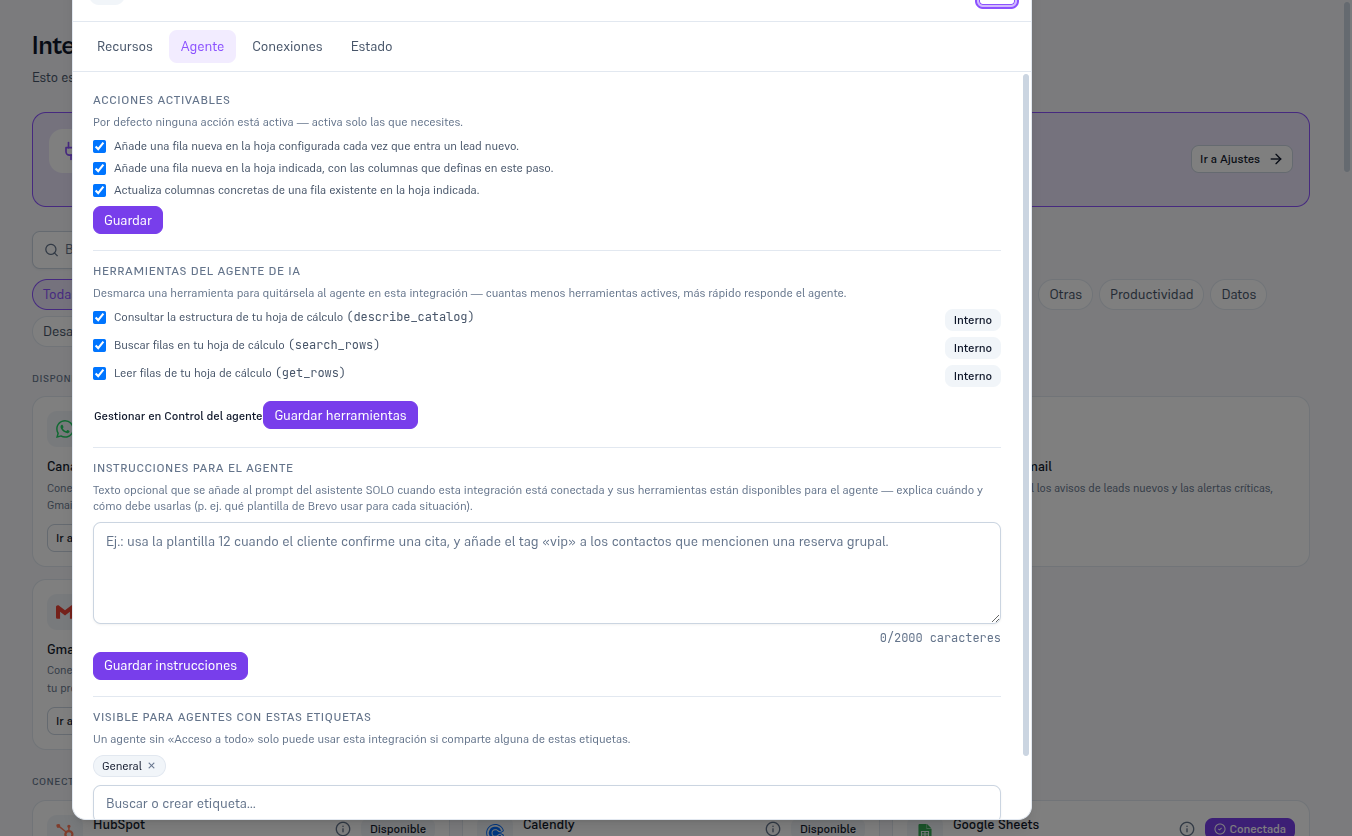
Once connected, the Agent tab of the detail shows the tools list, now with checkboxes to activate/deactivate and a Save button. The example below uses Google Sheets (already connected in this test tenant) to show what that tab really looks like once there’s a connection — with PandaDoc connected you won’t see the panel-actions block (it declares none), only the two own tools described above.