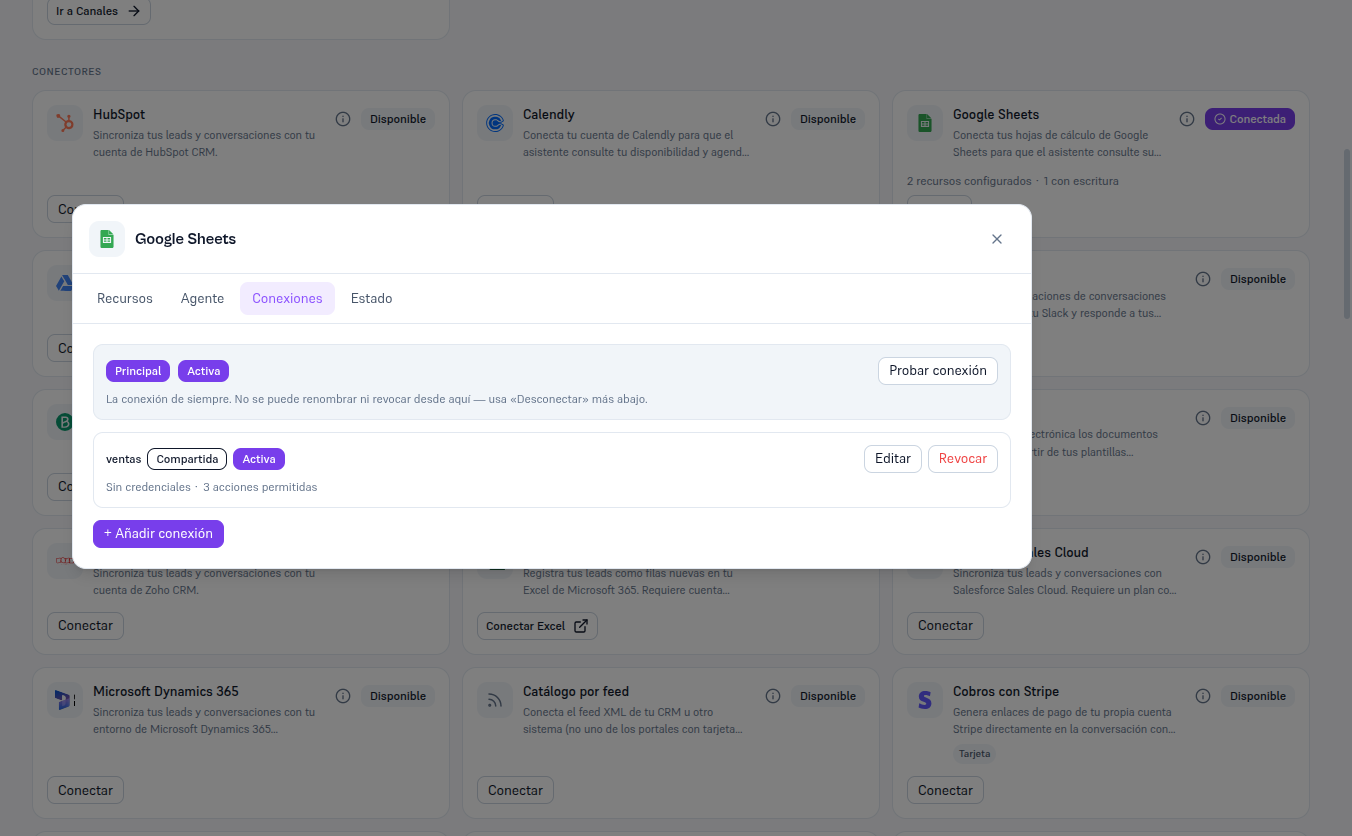
Besides the principal connection, Google Sheets supports named connections: several additional connections, each with its own registered sheets, meant for a specific flow or team (Manual 61 · Named connections and invoices by email covers this mechanism in detail). The detail’s Connections tab always shows the principal one first, with the + Add connection button below it to create a named one.
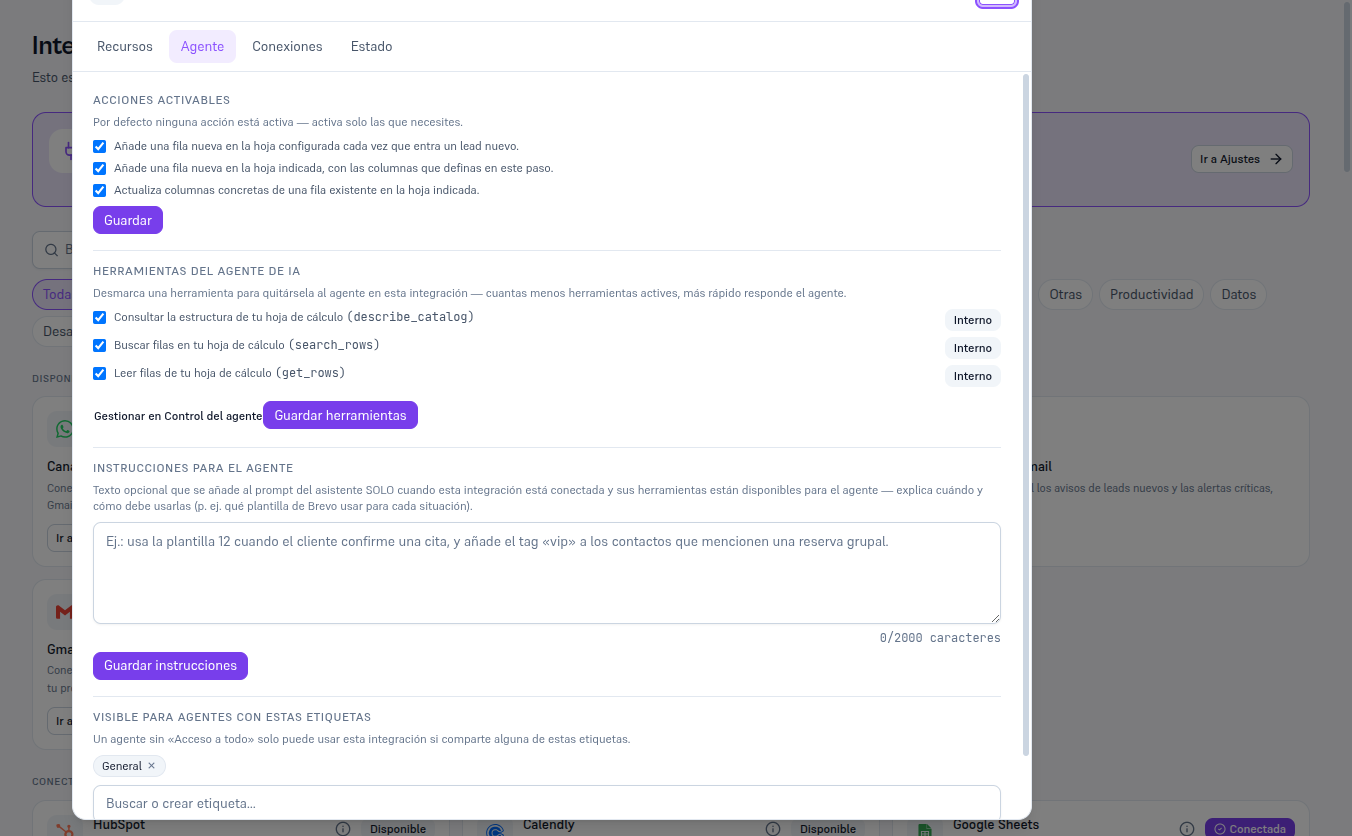
In the Agent tab you’ll find the checklist of the three panel actions and the list of the three agent tools:
| Panel action | What it does |
|---|---|
| Lead → row | Adds a new row in the configured sheet every time a new lead comes in. |
| Append row | Adds a new row in the indicated sheet, with the columns you define in a flow (Manual 55). |
| Update row | Updates specific columns of an existing row in the indicated sheet, from a flow. |
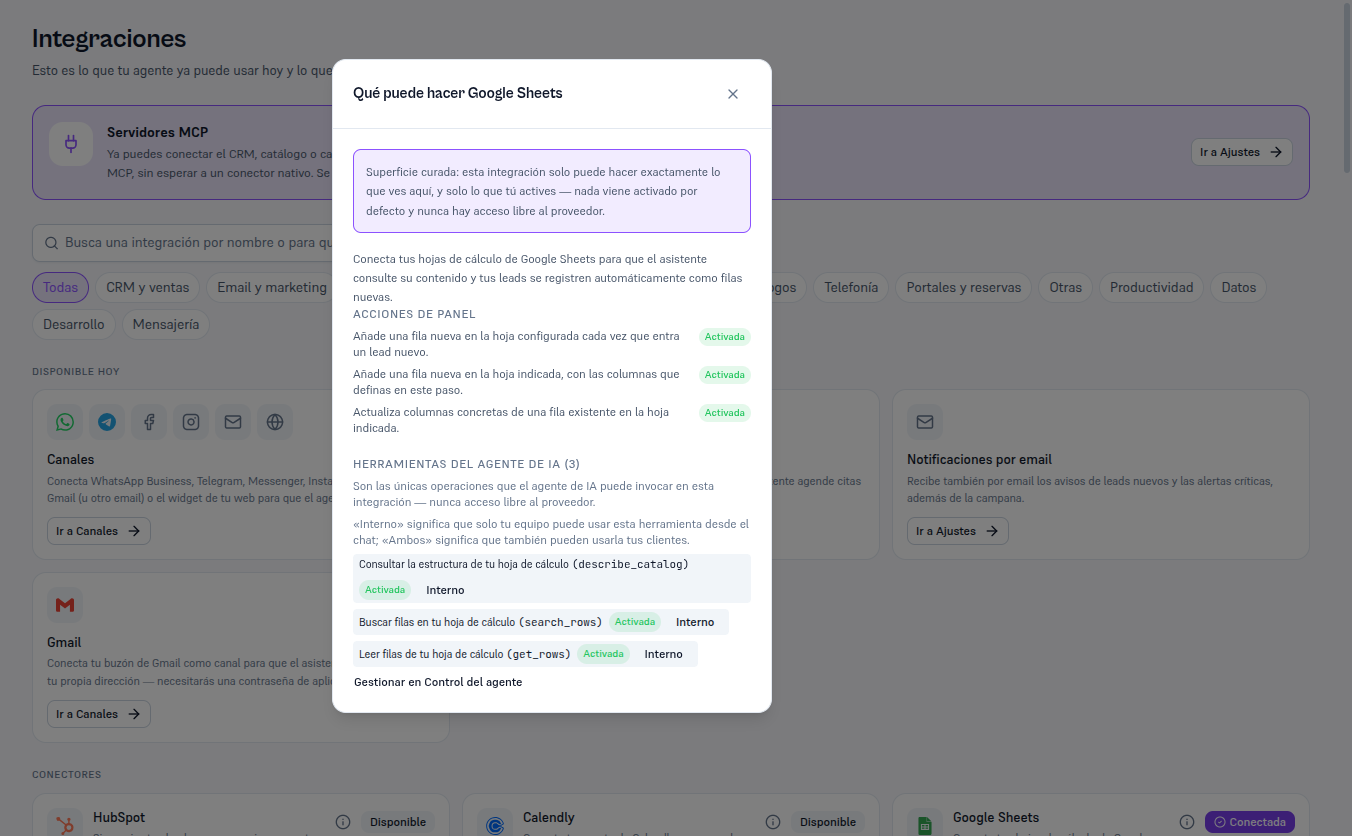
The three AI agent tools (describe_catalog, search_rows, get_rows) are Internal by default — the agent uses them to answer the customer with data from your sheet, but that’s not disclosed to the customer as “access to Google Sheets”. Change it from “Manage in Agent control” (Manual 52) if you want them to be Both.
The “What can Google Sheets do” button (the i icon) on the card shows this same summary, with the real activation state of each action and tool.
The full Agent tab, with the activation checkboxes and the Save button for each list, looks the same as any other connected integration (Manual 49, section 4).