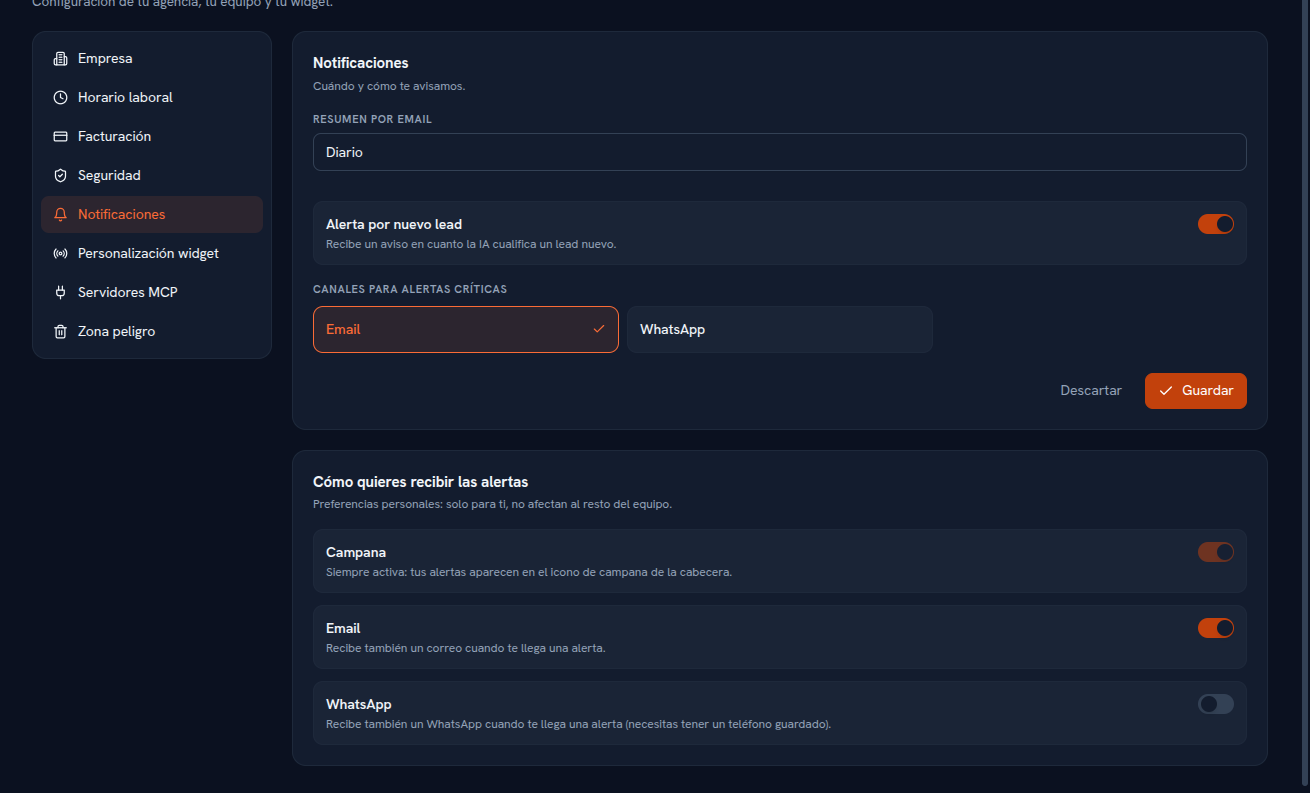
This screen has two clearly distinct parts: at the top, agency-wide alerts; below, your personal preferences for how you get notified.
Requirements: Admin role for the top part; any role can adjust their own personal preferences below.
- Go into Settings → Notifications.
- Choose the email summary’s frequency (daily, weekly or off).
- Turn the new qualified lead notice on or off.
- Check which channels for the tenant’s critical alerts you want those notices to arrive through: Email and/or WhatsApp.
- Tap Save (or Discard) for this top part.
Result: your agency starts receiving the summary and critical alerts through the channels you checked.
Below, in the “How do you want to receive alerts” section, you adjust your personal preferences — they only affect you, not the rest of the team, and the change saves instantly, with no separate “Save” button:
| Channel | How it works |
|---|---|
| Bell | Always on, can’t be turned off. It’s the bell icon in the Platform’s header, with a counter of unread notices; that’s where your alerts arrive — for example, when a conversation escalates on a channel you’re an owner of (Manual 24 · Channels), or when a ticket is assigned to you (Manual 27 · Marketing, or Manual 28 · Support if it’s a support ticket). |
| A toggle you can turn off if you don’t want those same alerts to also reach you by email — the bell keeps notifying you regardless. | |
| A toggle to also receive those same alerts over WhatsApp. You need a phone number saved on your profile. Your agency also needs a WhatsApp channel connected (Manual 24 · Channels) and an approved internal template for sending notices; if either is missing, the WhatsApp send is silently skipped — the bell and email, if you have them on, keep notifying you regardless. |