Requirements: Admin role; having shared at least one file or folder (section 3), though you can connect first and share right after.
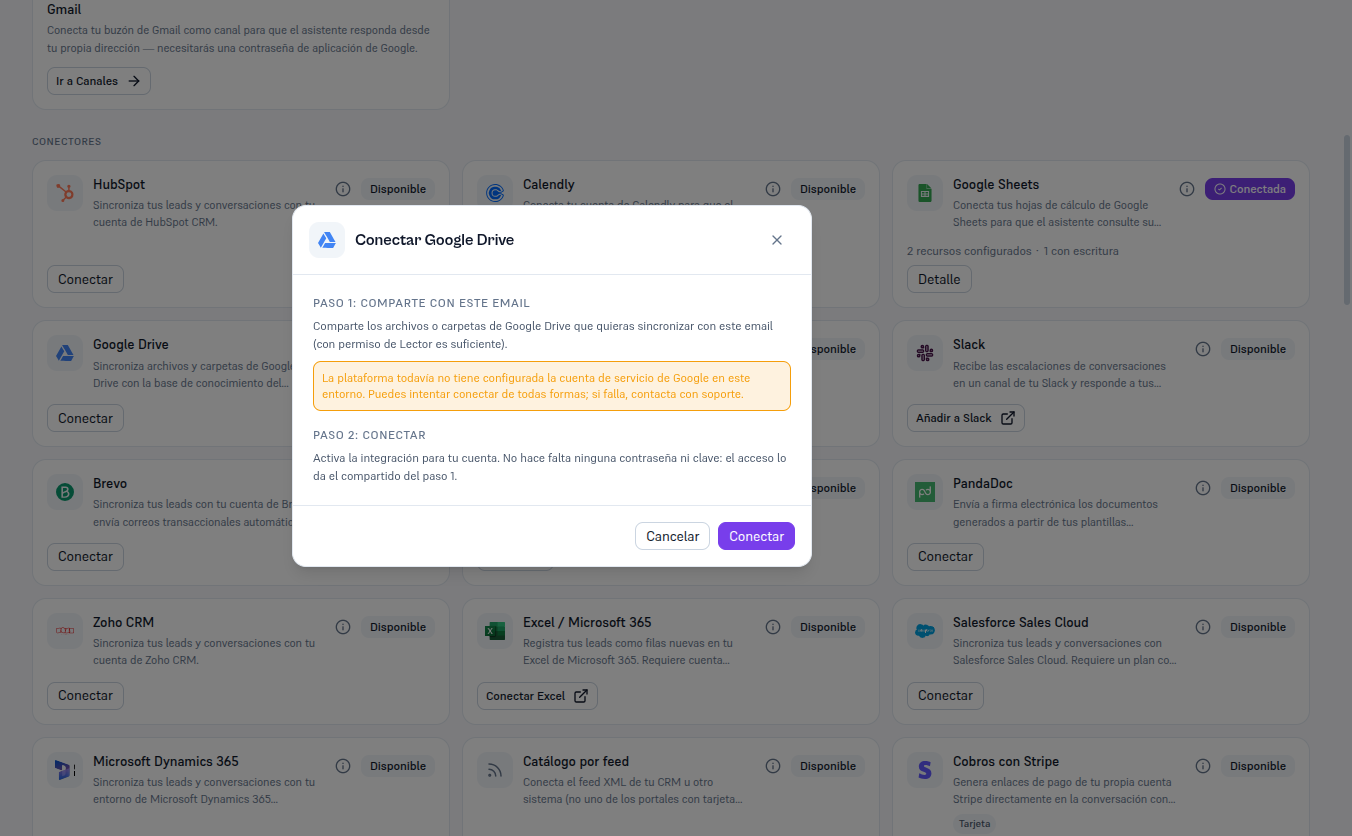
- In Integrations, find the Google Drive card (in “Available” state) and click Connect.
- Step 1: share with this email — the modal shows your Platform’s service account email, with a button to copy it.
- Step 2: connect — click Connect. No password or key is needed: access is granted by the share from step 1.
Result: the card switches to Connected. The screenshot below belongs to this documentation’s test environment, where the Google service account isn’t configured yet — that’s why step 1 doesn’t show a specific email and adds a notice about it. On your real account you’ll see the same form, with the email you need to share.
Once connected, open Details → Resources: you’ll see your Drive browser (GET /integrations/drive/browse) with the files and folders you already shared. Selection is granular and manual: you confirm file by file (or folder by folder) what goes into the knowledge base — your whole Drive is never synced automatically or recursively.