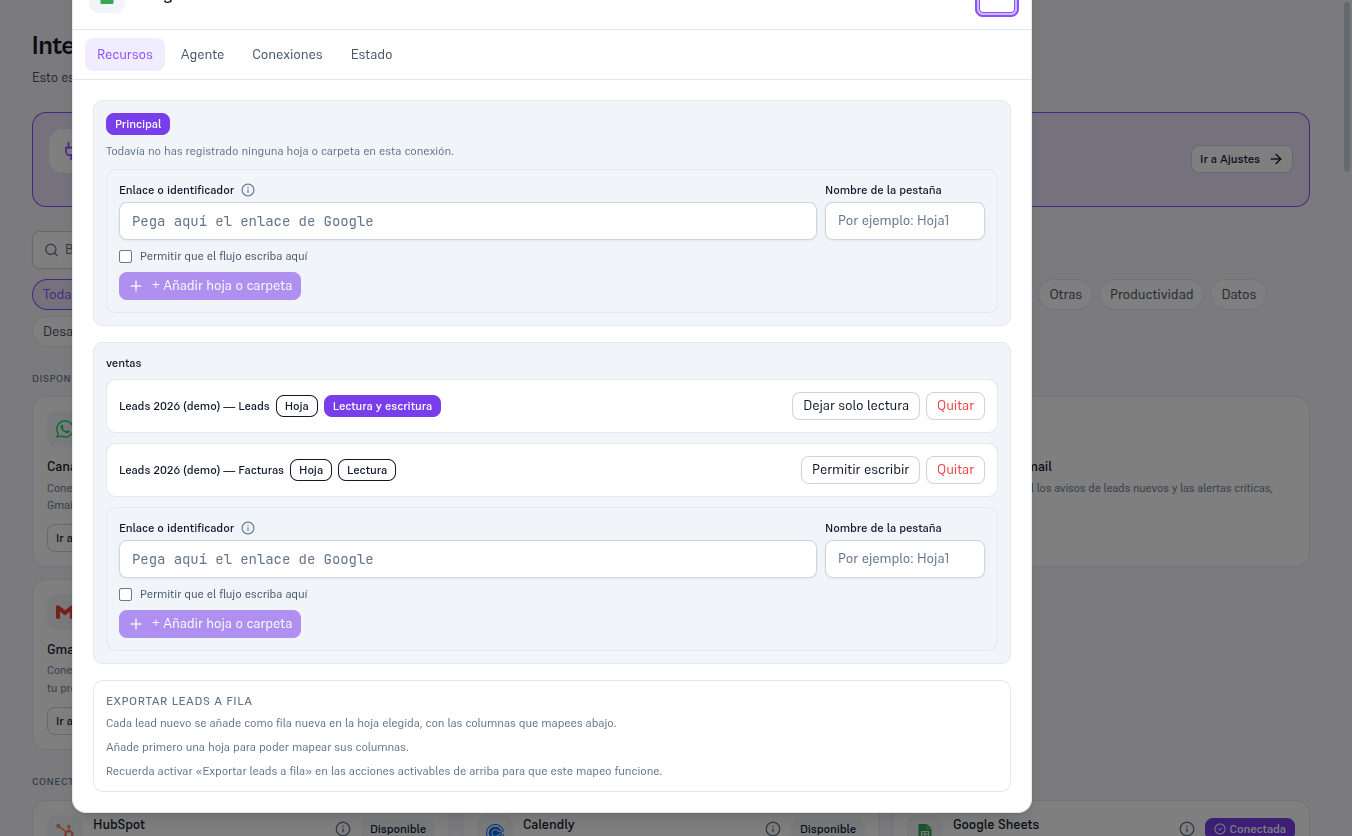
When an integration is Connected, its card shows a Details button that opens a modal with up to four tabs — some integrations only show the ones that apply to them (for example, Email only shows Connections):
| Tab | What it contains |
|---|---|
| Resources | Configuration specific to that integration — which sheet, folder, template or payment method it uses. If it doesn’t apply (HubSpot, Salesforce…), it shows a notice that there are no resources to configure here. |
| Agent | The checklist of activatable panel actions and the list of AI agent tools, each with its own Save button — see Manual 63/64, section 5, for a full example. |
| Connections | The principal connection and, if applicable, the named connections (section 3). |
| Status | The “Test connection” and “Disconnect” buttons. |
The card itself (connected or not) also has an info button (“i”) that opens the “What can [integration] do” panel: the complete list of panel actions and agent tools, with their enabled/disabled state — you can check it even before connecting, to know in advance what you would be activating.