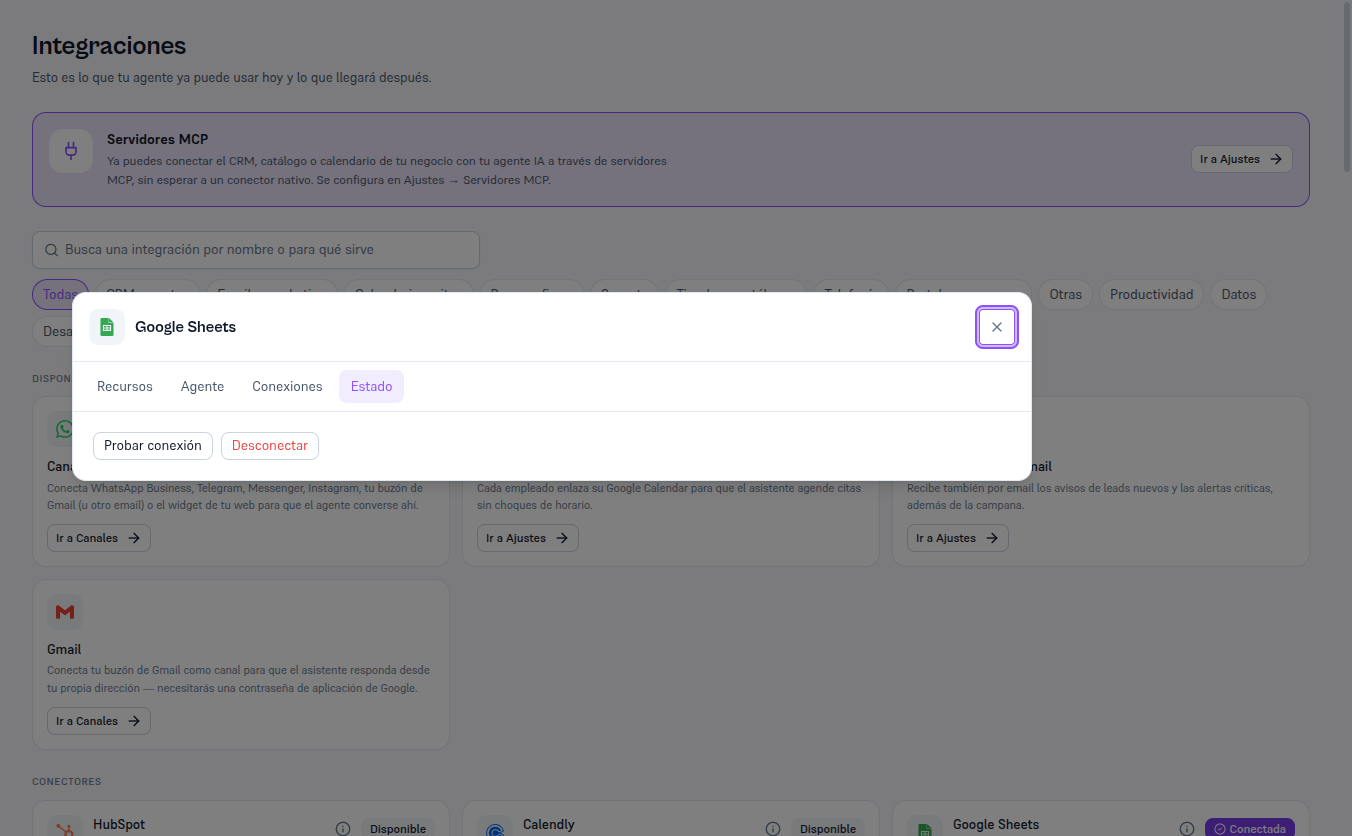
With MailChimp already connected, the detail’s Status tab includes a Test connection button that checks, on the spot, that the saved key is still valid against MailChimp’s real API.
Requirements: Admin role.
- Open MailChimp’s Detail and go to the Status tab.
- Click Test connection.
Result: “Connection successful” if the key is still valid, or “Couldn’t connect: [reason]” if the key was revoked or changed (section 8). Remember that “Connection successful” checks the Marketing key, not the Mandrill one — if transactional emails fail, check the Mandrill key from section 3 separately.
The example below uses Google Sheets again — with MailChimp connected, the same “Status” tab shows the “Test connection” and “Disconnect” buttons.