
Skip to content

Integrations

Procedure: MCP servers

Here you connect your business’s CRM, catalog or calendar with the AI agent, so it can use them as tools while chatting. This procedure is for bringing your own server (“Custom”): you provide the URL and the credential of an MCP server that already exists. It’s the route for linking your own systems when a native connector doesn’t exist yet (section 11).

Note — Looking for the catalog of preconfigured servers?

Below this “MCP servers” block, the same Settings tab has a “MCP server catalog” with dozens of already-verified providers (by key or by OAuth) — no need to know their technical URL. The full procedure is in Manual 60 · MCP servers: catalog and connection; this manual only covers manual registration (Custom).

Requirements: Admin role; access credentials for the system you want to connect.

  1. Go into Settings → MCP servers.
  2. Tap Register server.
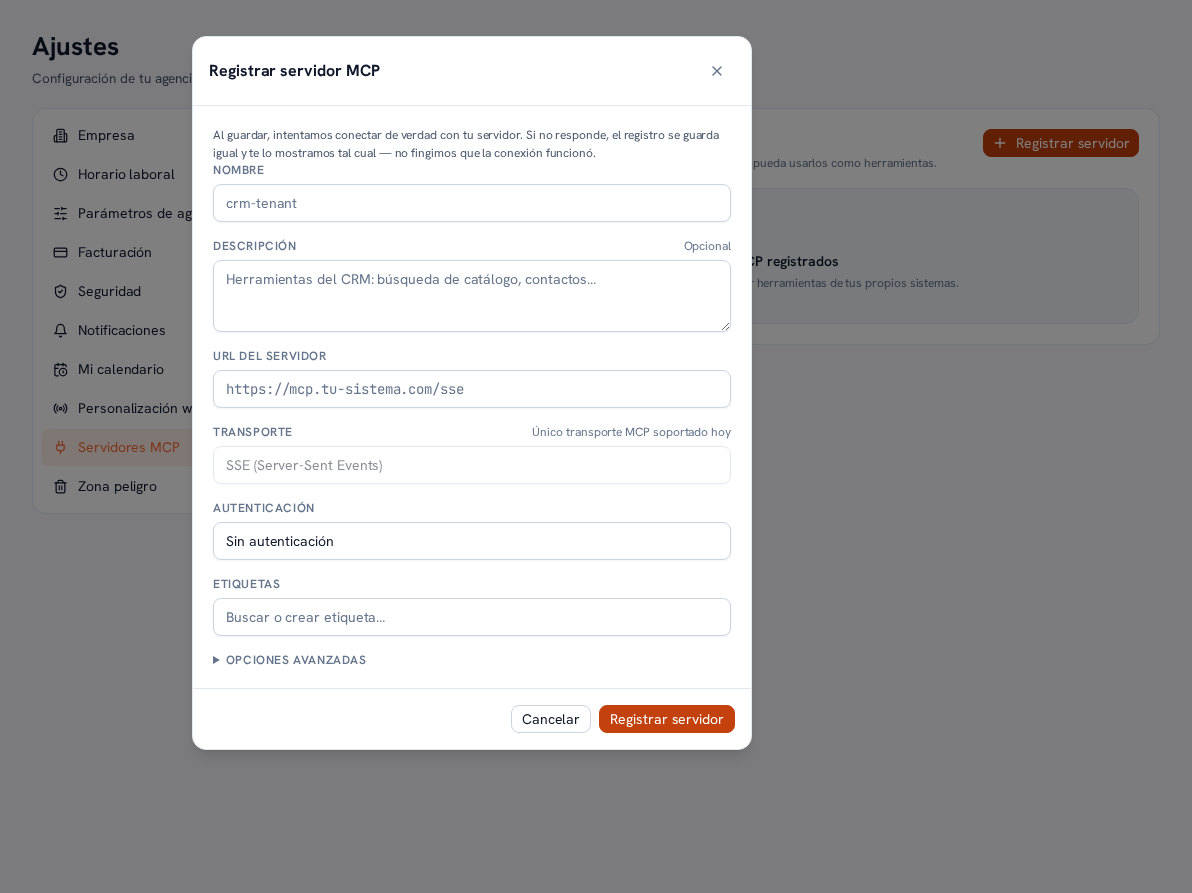
  3. Fill in your system’s connection details and, if you want to narrow down which agents can use it, add one or more tags (same mechanism as on documents and templates — Manual 23 · AI agents, section 6).
  4. Confirm the setup.

Result: the credentials you enter are saved encrypted; once connected, the tools that server exposes become available for any agent with access to that resource to use — “Access to everything”, or one of its tags (Manual 23 · AI agents, section 6).
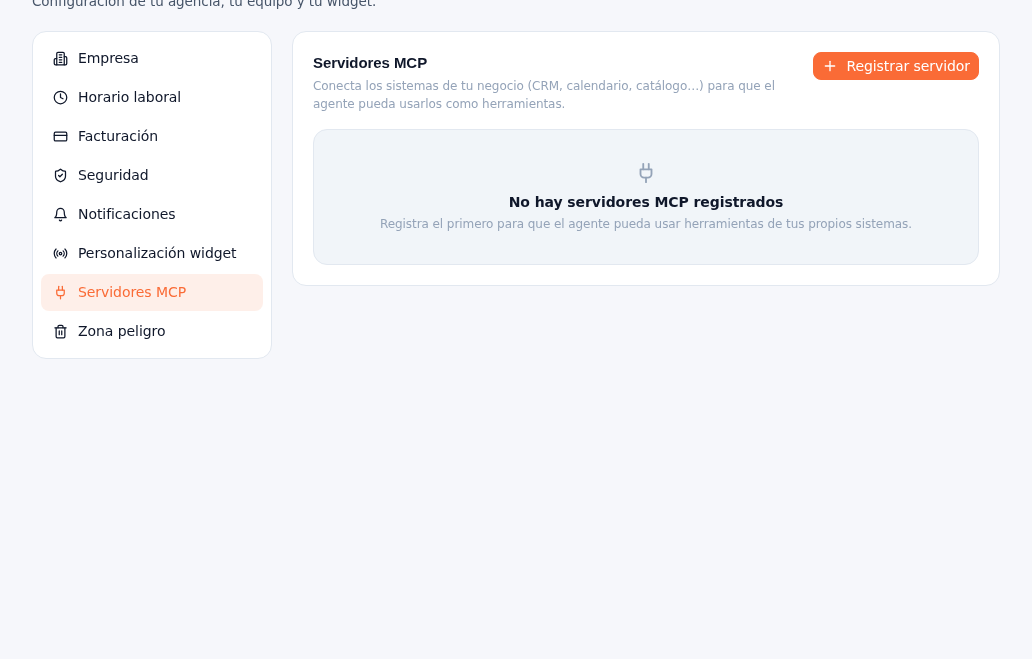
Settings → MCP servers with the subtitle "Connect your business systems (CRM, calendar, catalog…) so the agent can use them as tools", the Register server button at the top right and the empty state "No MCP servers registered: Register the first one so the agent can use tools from your own systems"

The Register MCP server modal with the notice "When you save, we actually try to connect to your server. If it doesn't respond, the registration is saved anyway and shown as-is — we don't pretend the connection worked", and the Name, Description (optional), Server URL, Transport (SSE, the only MCP transport supported today), Authentication (No authentication) and Tags fields, with the Cancel and Register server buttons