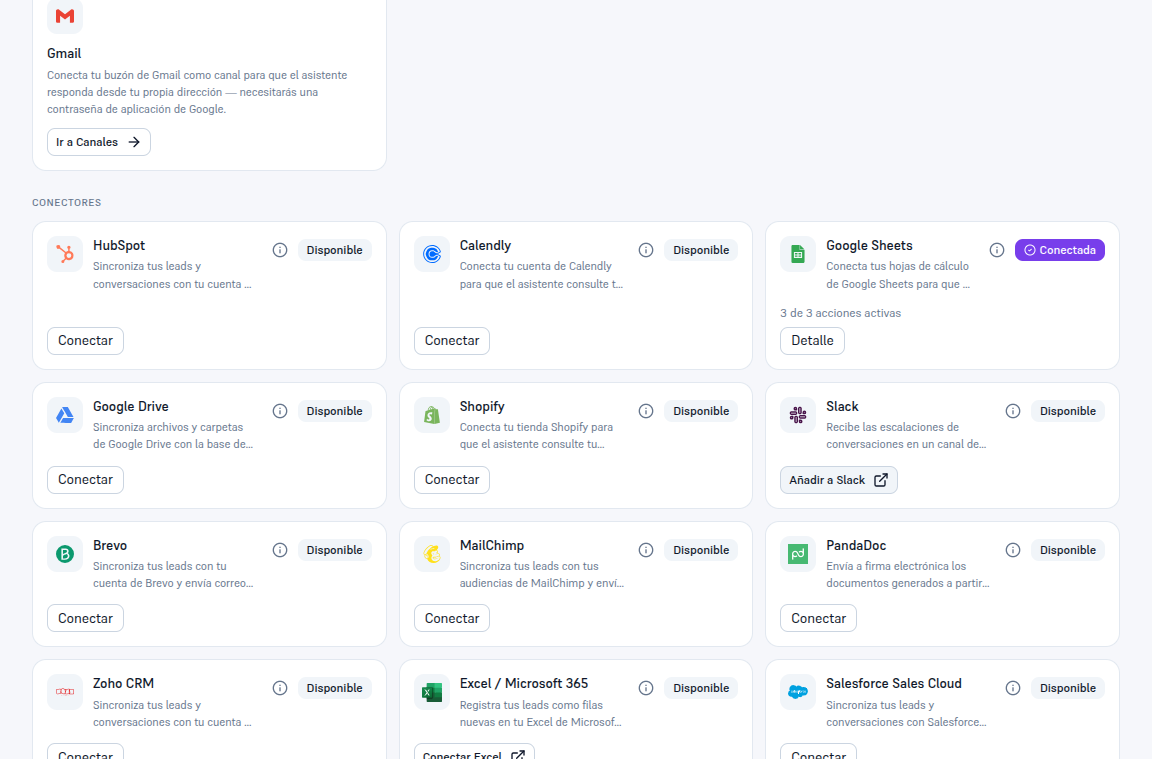
Go to Integrations, in the sidebar. It’s the single place from which you connect your business’s own systems to your AI agent.
Requirements: viewing the screen, any role; connecting or managing a connector, Admin role (Editor and Viewer see it read-only).
The screen is organized into four blocks, top to bottom:
- MCP servers (section 5): the generic mechanism, available for any system, even one that doesn’t have a native connector yet.
- Available today: shortcuts to pieces that already work but live on another screen — Channels, Google Calendar and Email notifications.
- Connectors: the first-party integrations, resolved live, with a search box and category filters (CRM and sales, Email and marketing, Calendar and appointments…).
- Coming soon: an informational catalog of connectors in development, with no action available yet.
Each card in the Connectors section has one of these three states:
| State | What it means | What you can do |
|---|---|---|
| Available | The connector is enabled for your account but you haven’t connected it yet. | Connect button, and the info button (“i”) to see in advance what actions and tools it activates, without connecting yet. |
| Connected | You already have saved, active credentials. | Details button — opens the modal from section 4, with a one-line summary (e.g. “3 of 3 actions active” or “2 resources configured · 1 with write access”). |
| Available on request | This connector isn’t enabled by default for your vertical, but you can ask for it to be activated for your account. | Request button — sends a notice to your provider; after sending it, you’ll see “Request sent. Our team will review it shortly.” |
Which connector is available by default for each vertical is decided by your provider based on the type of business; if yours doesn’t show as “Available”, use “Request” — or, meanwhile, the generic MCP servers path from section 5 remains open for any system.