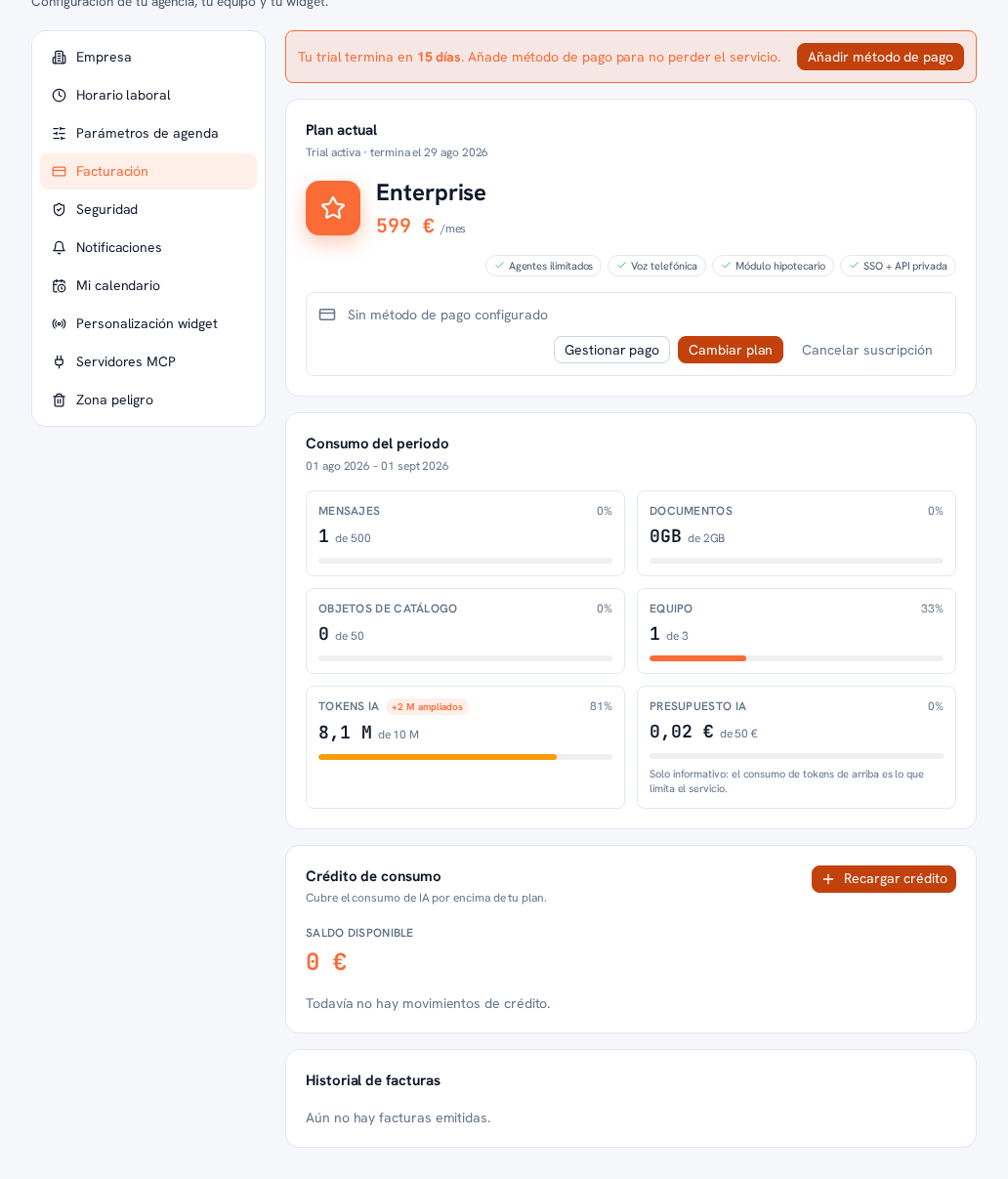
Billing’s top card is your Current plan: it shows the plan’s name (Starter €99/month, Pro €249/month or Enterprise €599/month), the features it includes as chips (for example “Unlimited agents”, “Phone voice”, “Mortgage module”, “SSO + private API” on Enterprise), your saved payment method (or the “No payment method configured” notice if you haven’t added a card yet), and the date your period renews.
Requirements: Administrator role.
- Go into Settings → Billing.
- On the plan card, tap Change plan.
- A window opens with the 3 plans as cards (Starter, Pro, Enterprise). Choose the one you want.
- Confirm. Behavior depends on whether you’re upgrading or downgrading:
- Upgrade: applies instantly. Stripe automatically prorates the difference on your next invoice — you don’t pay twice for the same period.
- Downgrade: you’re asked to confirm (“The change will apply at the end of your current period”) and the change applies at the end of your billing period — you keep enjoying your current plan until that date, with no partial refund.
Result: your plan (and its conversation and AI token limits, see section 4) changes according to the type of change chosen; the card above reflects the current plan and, if the change is deferred, the date it will take effect.
Note — If Stripe isn’t configured in your environment yet
The plan change isn’t faked: you’ll see the honest notice “Plan management isn’t available yet” and your current plan doesn’t change. Contact your provider — Manual 28 “Support” — in the meantime your provider’s team can assign you a plan directly from the internal panel.
If your plan is “Custom”
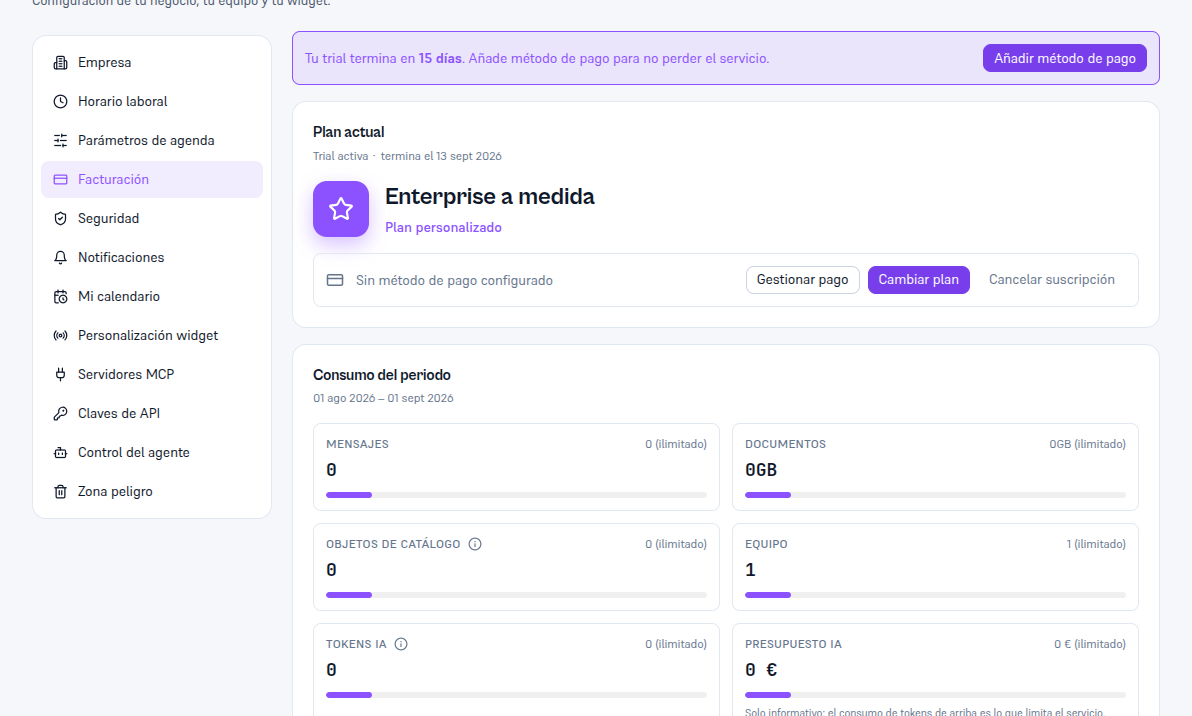
Section titled “If your plan is “Custom””Some agencies have conditions agreed directly with your provider instead of one of the 3 standard plans — for example, a bespoke Enterprise agreement by volume or by specific feature. When that’s your case, the “Current plan” card looks different:
- What you DO see: your plan’s name (for example “Bespoke Enterprise”) with the “Custom plan” label right below it, instead of a price; your payment method (or the notice that you don’t have one configured); and the same three buttons as always — Manage payment, Change plan and Cancel subscription — working normally.
- What you DON’T see: neither the monthly price nor the list of included features as chips — those details are left out of this screen on purpose, because your plan’s conditions were agreed separately with your operator.
If you tap Change plan with a custom plan, the 3-standard-plan comparator doesn’t open: instead you see the notice “Your plan is custom. It has conditions agreed directly with your operator. If you want to change it, get in touch with your support team.” — a bespoke plan isn’t changed self-service, it’s renegotiated with your provider (Manual 28 “Support”).
Note — The sidebar summary may show the plan’s technical name
The summary you always see in the sidebar’s bottom corner (section 1) sometimes shows the plan’s internal name as-is, in uppercase (for example “PLAN PLAN-ENTERPRISE-BESPOKE”) instead of the polished name you see on the “Current plan” card — it’s a known cosmetic detail, with no effect on your service or your billing; this screen’s “Current plan” card name is always the one to go by.