Account and team
Procedure: change someone's role, suspend them, or remove their access
Requirements: administrator role.
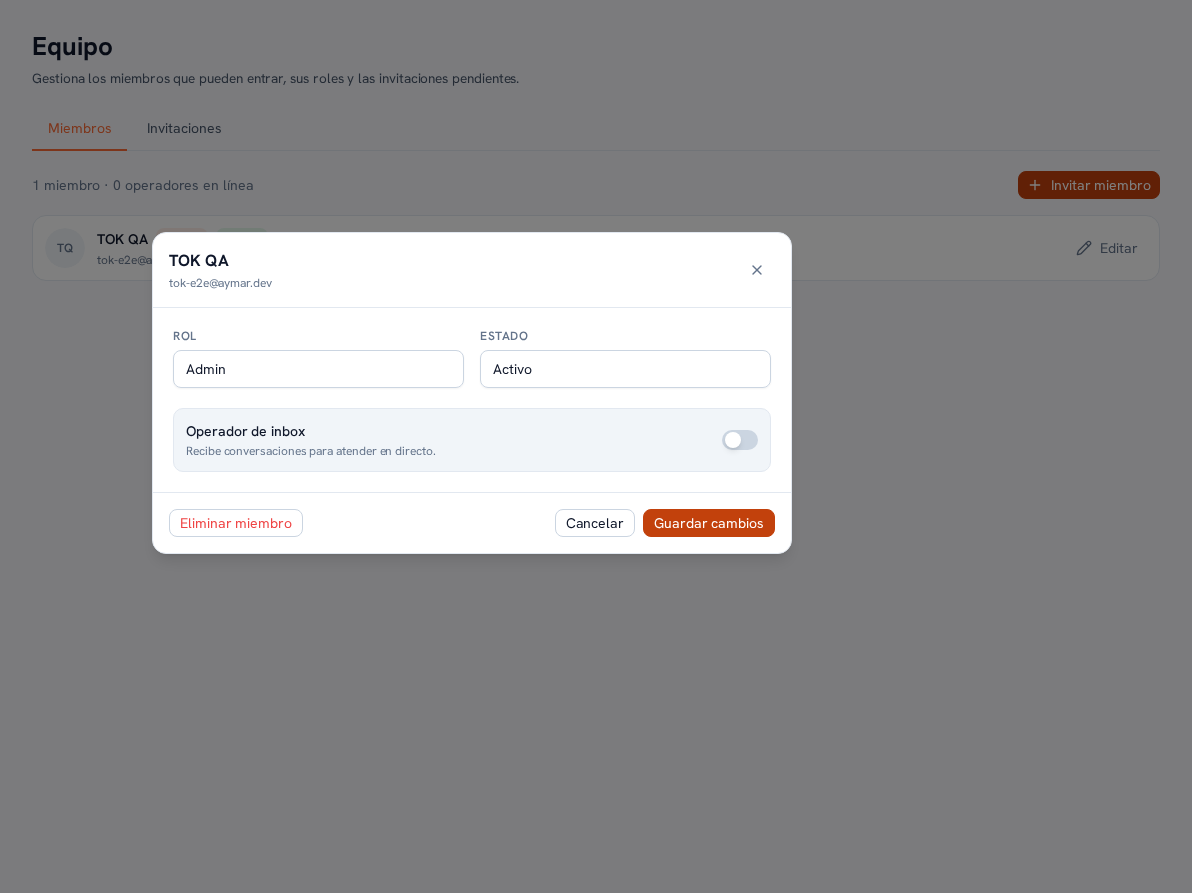
- On Team → Members, find the person in the list.
- Tap the pencil “Edit” icon, to the right of their row.
- To change their role, choose between Admin, Editor or Read-only.
- To remove their access, change their status to Suspended: they lose access to the Platform, but their history (messages, assignments, conversations they handled) is kept.
- Confirm the change.
Result: the new role or the new status applies immediately. If you suspend someone, their active session loses access and they no longer show up as available to receive new conversations or escalations.
Note — When someone leaves your agency
Suspend their user as soon as they leave the team: besides cutting off their Platform access, they stop counting as an available operator and their personal connection to integrations that depend on their account (for example, a connected personal calendar — Manual 26 · Settings and integrations) stops being used with them.