Requirements: a work email you have access to, and a phone number in international format that isn’t already verified on another account.
- Go to the registration screen and, if you don’t want to use Google, continue with the form that appears below the “Or with email” divider.
- Type the Business name: your company’s name, exactly as you want it to show up on the Platform.
- Open the Business type dropdown (“Select a business type”) and choose your agency’s sector — it’s required; see what this field gives you in the note below.
- Type Your full name, as the account’s first administrator.
- Type your Work email: this will be your username to log in, and the verification code from section 3 will be sent to that same address.
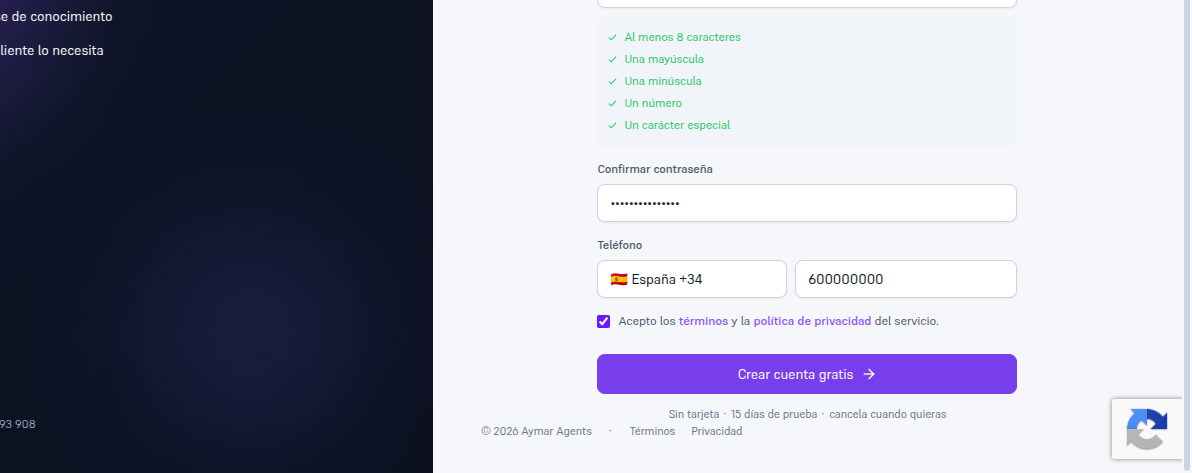
- Type a Password between 8 and 128 characters, with at least one uppercase letter, one lowercase letter, one number and one special character; below the field, a list of the five rules turns green as your password meets them.
- Repeat the same password in Confirm password — the form won’t let you continue if it doesn’t match the previous one.
- Fill in Phone: choose your country in the prefix dropdown — searchable by name or by prefix, with
the flag and prefix always visible (for example ”🇪🇸 Spain +34”) — and type your national number without
the prefix in the field next to it (for example
600 000 000). It’s required and must be unique: if it’s already verified on another account — yours or another agency’s — the form warns you and you can’t continue with that number. The country you choose here is also saved as your agency’s country — you can see it and change it later in Settings → Company (Manual 26, section 2). - Check the “I accept the Platform’s terms and privacy policy” box — you can’t submit the form without checking it.
- Tap “Create free account”.
Result: you move to the “Confirm your email” screen from section 3 — unless the email you typed already has a verified account, in which case the form tells you and offers a direct link to log in with that account instead of creating a new one.
Note — “Terms” and “privacy policy” are real links
In the acceptance checkbox, “terms” and “privacy policy” are links that open the corresponding document in a new tab — you can read them before checking the box. In this version of the product, those links and the checkbox’s own text (”… of the Platform”) always point to the platform provider’s legal documents, not your own business’s: they aren’t customized per white-label brand yet. Besides this control on the form, the server also enforces acceptance: if you tried to create the account without having checked it, the request is rejected all the same even if someone tampered with the form.
Note — What choosing your business type gives you
This field drives your AI agent’s initial configuration: once your account is verified, your agent is created already adapted to your sector, with access to everything you upload from then on and with a Web widget channel ready to embed on your site — you start working without configuring anything by hand. If your sector doesn’t appear on the list, choose the closest one or “Lead generation (general)”; your provider’s team can change it later without touching anything you already have configured.
In the background, the form checks that whoever is submitting it is a person (reCAPTCHA); if that check isn’t available in your environment, the submit button is disabled with a notice.