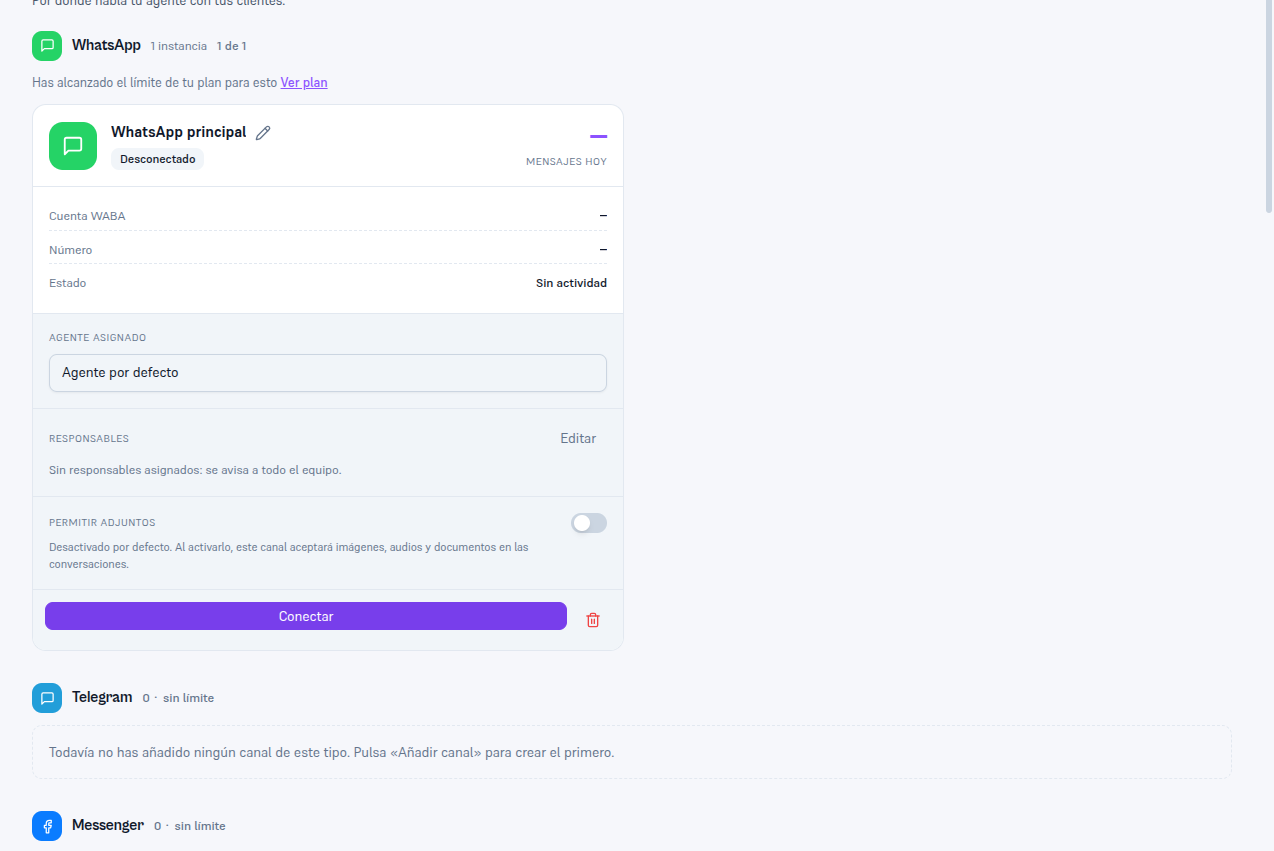
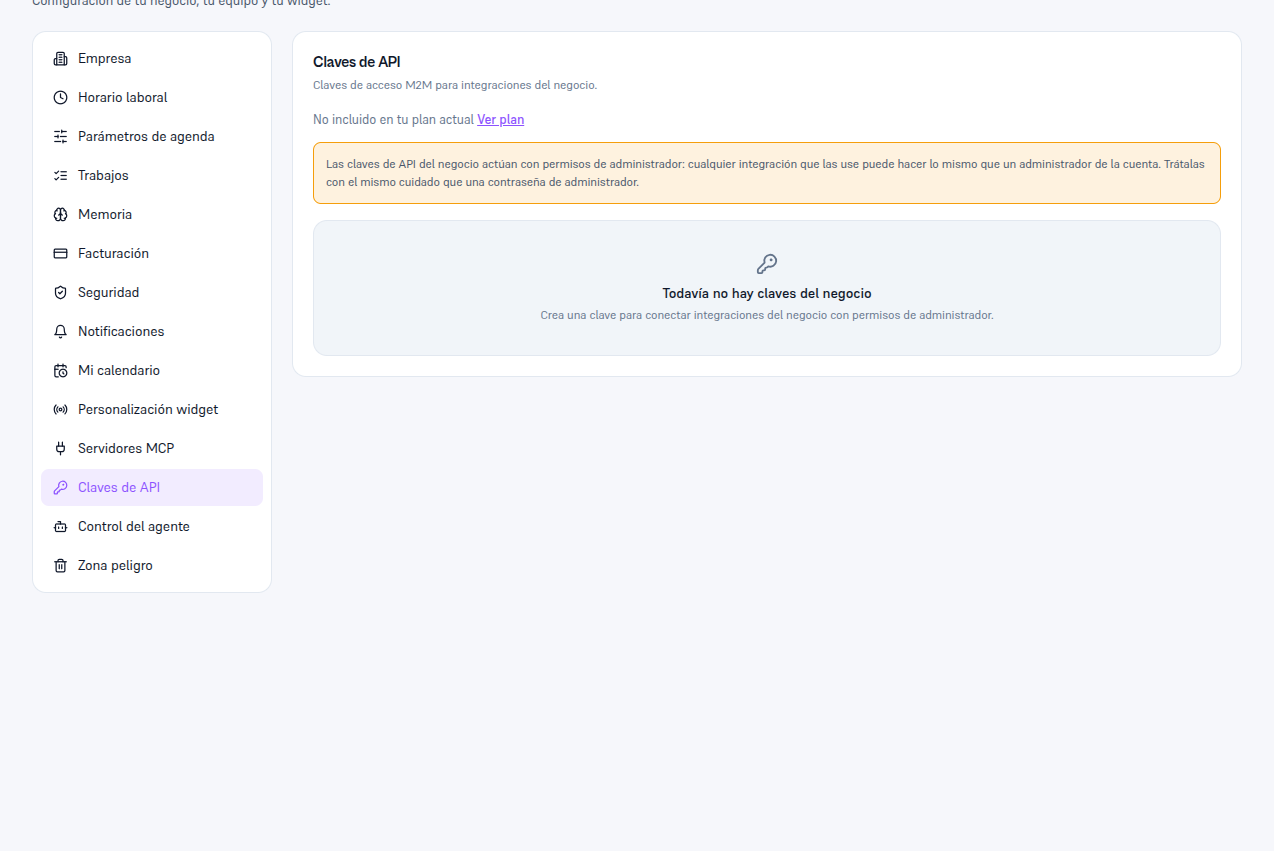
No screen blocks you silently. Depending on the capability and how much you have left, you’ll see one of these three exact messages, always next to the create control:
| Message | When it appears | What you can do |
|---|---|---|
| Not included in your current plan | That capability isn’t part of your plan (for example, the public API on a plan that doesn’t include it). | The create button doesn’t appear; instead, a “Request” button (section 5) or the “View plan” link. |
| You’ve reached your plan’s limit for this | You already have as many instances created as your plan allows (for example, “1 of 1” on WhatsApp). | The create button is disabled with this reason; you can delete an existing instance to free up room, or “Request”/“View plan”. |
| (no message, normal “N of M” counter) | You still have room. | Create as normal. |
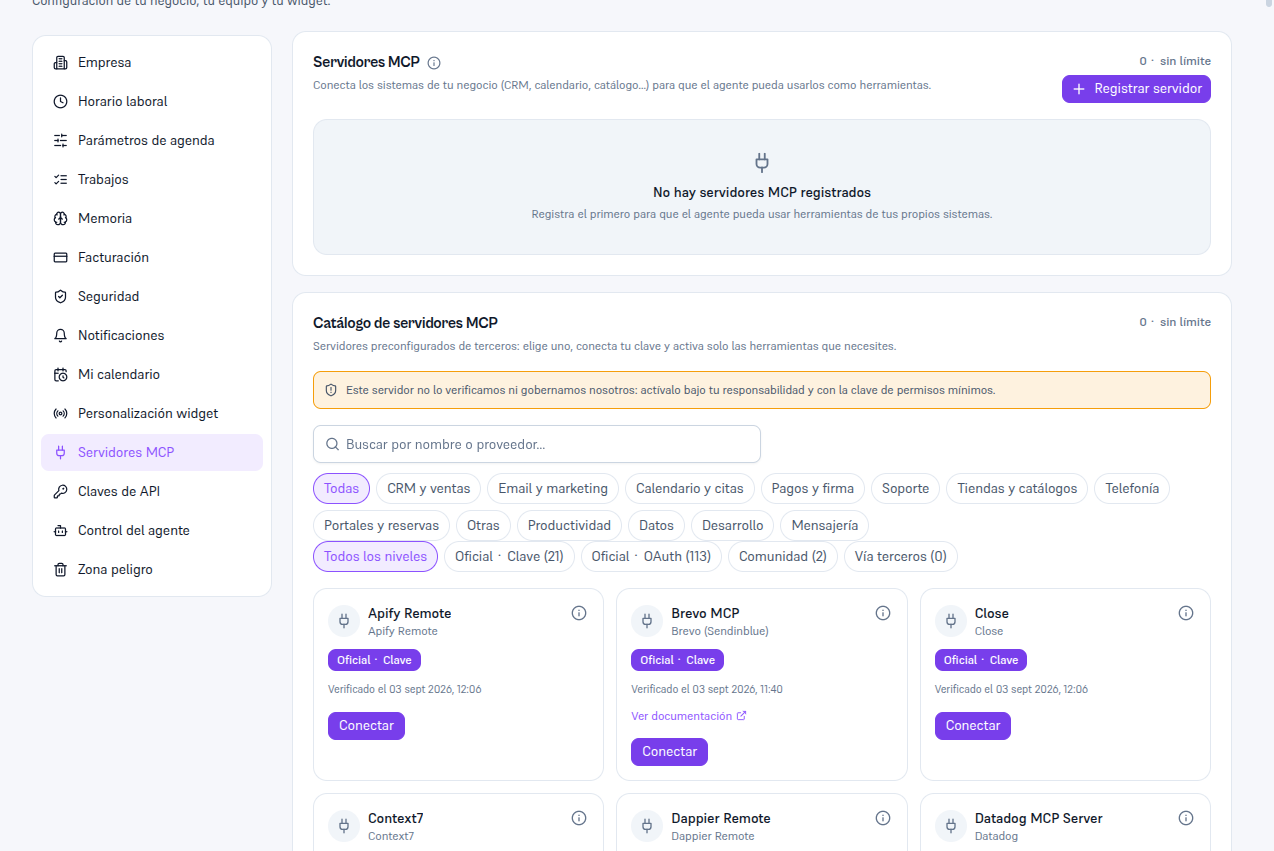
MCP servers have two independent counters on the same screen — one for the catalog of preconfigured servers and another for your own servers (BYO) — each with its own limit, because they’re two distinct catalog capabilities: